Title here
Summary here
The admin settings panel is a separate UI surface from the main dashboard. To reach it:
The page title reads “Aegis Compliance Suite Settings” and the subtitle reads “Configure app settings, integrations, and policies.”
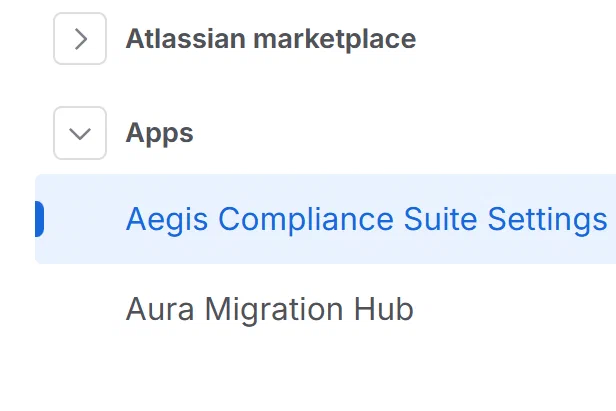
The admin settings page enforces a role check on every resolver call server-side. Only users with the Admin role can access and modify any setting on this page. If you navigate to the URL without the Admin role, you will see an “Access Denied” error banner instead of the settings interface.
Note: The user who installs the app is automatically assigned the Admin role. All subsequent users default to no role (equivalent to no access) until an Admin assigns them a role.
The settings page contains 10 tabs, rendered left to right in this order:
| Tab # | Label | Purpose |
|---|---|---|
| 1 | Permissions | Assign Aegis roles to Confluence users |
| 2 | Classifications | Set sensitivity labels on spaces and pages |
| 3 | Detectors | Configure content scan regex detectors |
| 4 | Scoring & SLA | Tune exposure score weights and SLA deadlines |
| 5 | Access Explorer | Configure group expansion behavior |
| 6 | Integrations | Configure Jira issue linking |
| 7 | Retention | Set data retention periods |
| 8 | System | View job health, rebuild entity count cache |
Tab state persists across page refreshes. The app writes a heartbeat to localStorage every 2 seconds. When you refresh the page within 5 seconds of last activity, the previously selected tab is restored from sessionStorage.
Success messages (green banners) are automatically dismissed after 4 seconds. Switching tabs also clears the success message.