Title here
Summary here
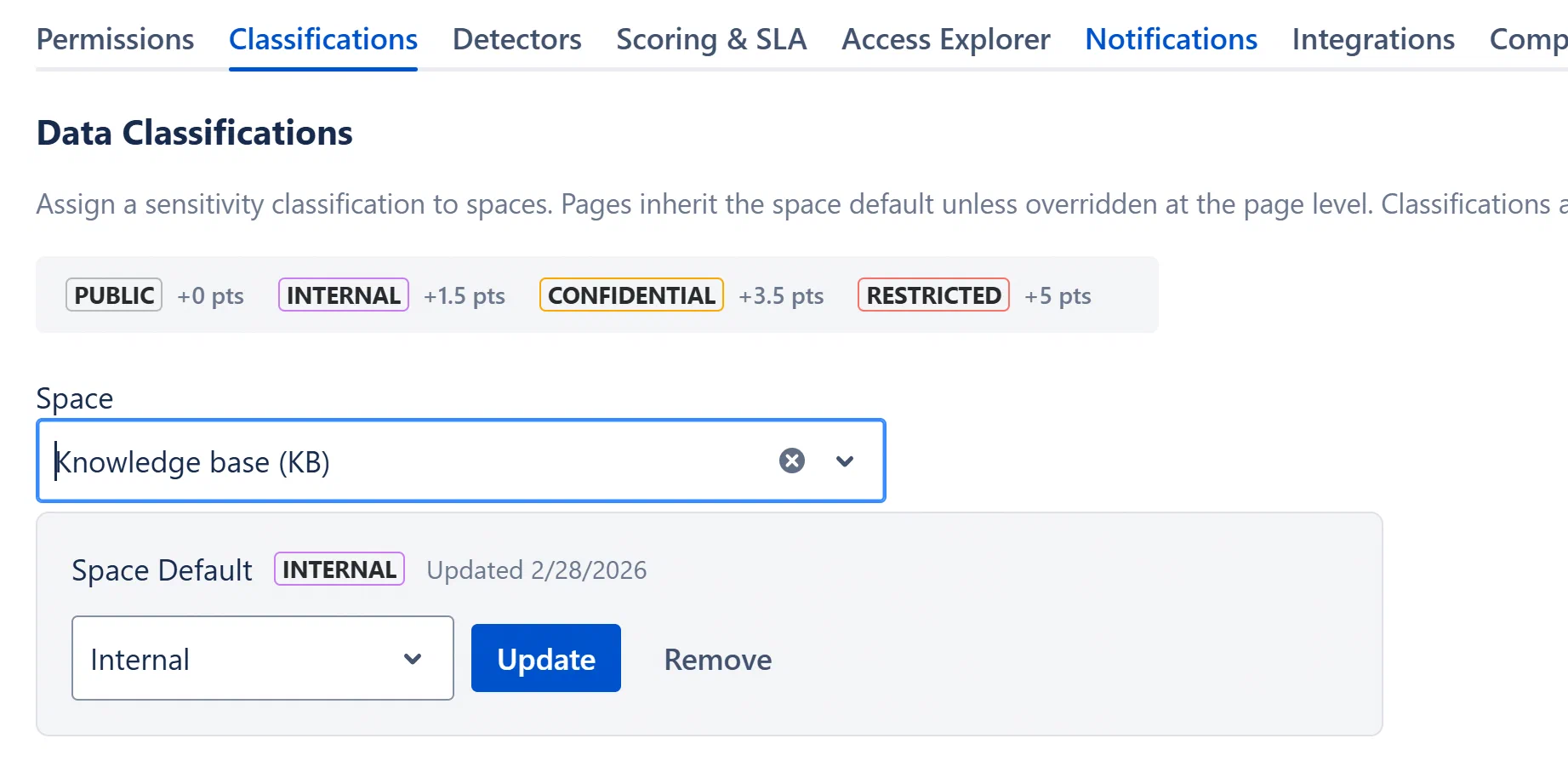
A space-level default applies to all pages in that space that do not have a page-level override.
Page-level overrides are set from the content byline on each Confluence page, not from this admin tab. An Analyst or Admin can click the classification lozenge in the byline to set a page-specific level.
The admin Classifications tab shows existing page overrides for the currently selected space and allows removing them.
Space-level: Select the space, then click Remove (visible only when a classification exists). The space reverts to “Unclassified”. All pages in that space without page-level overrides will also become unclassified.
Page-level override: With a space selected, scroll to the “Page Overrides” section. Each override row shows the page content ID, classification level, date set, and a Remove link. Click Remove to revert that page to inheriting the space default.
| Scope | Key Format | Behavior |
|---|---|---|
| Space default | space:{spaceKey} | Applies to all pages in the space unless overridden |
| Page override | page:{contentId} | Overrides the space default for this specific page |
The lookup order is: page override → space default → unclassified. The effective classification used in exposure scoring is always the most specific one available.