Custom Detectors

Adding a Custom Detector. Step by Step

Custom detectors let you write your own regex patterns to detect organization-specific sensitive data (for example, internal employee ID formats, project codenames, or database connection strings unique to your environment).

  1. In the Custom Detectors section, click + Add Detector.
  2. Fill in the Name field (required). This name appears in findings created by this detector.
  3. Fill in the Description field (optional). Describe what the detector looks for.
  4. Select a Category: secret, pii, or custom.
  5. Select a Severity: Critical, High, Medium, or Low. This sets the severity of findings this detector creates.
  6. In the Regex Pattern field, enter your JavaScript regex pattern. Do not include the surrounding / slashes or flags, flags gi are applied automatically.
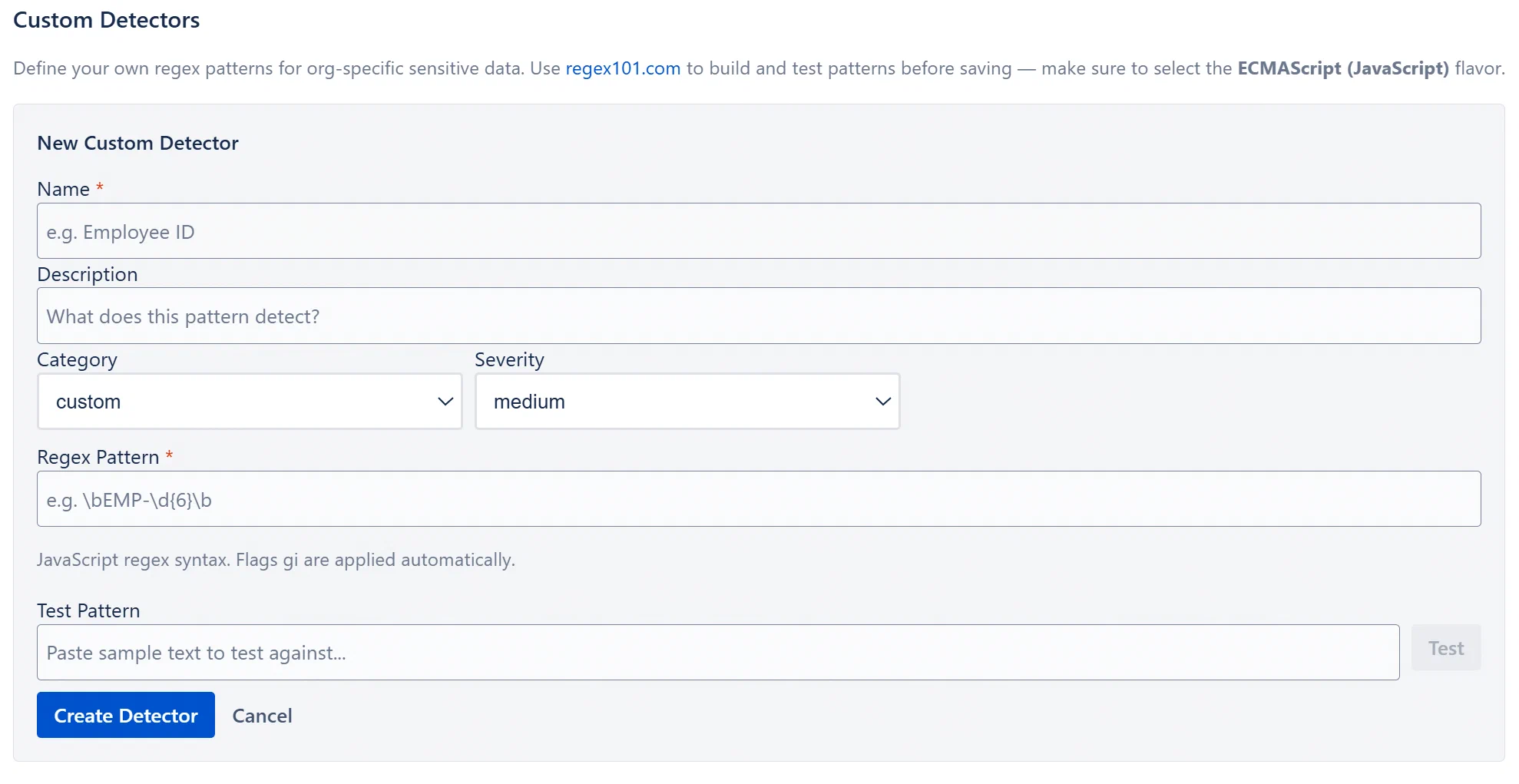
  7. (Optional) In the Test Pattern field, paste sample text that should match your pattern, then click Test.
  8. Review the test results (green = matches found, orange = no matches, red = invalid regex).
  9. Click Create Detector.

Custom Detector form showing the Name, Description, Category, Severity, Pattern, and Test fields

Testing a Regex Pattern

The test field in the custom detector form sends your pattern and sample text to the server, which runs the regex and returns the result. The result shows:

  • Green: One or more matches found. Each match is shown as a code chip.
  • Orange: Pattern is valid but no matches found in the sample text. Check that your sample text actually contains the pattern.
  • Red: Pattern is invalid JavaScript regex. The error message describes the syntax problem.

Note: Use regex101.com with the ECMAScript (JavaScript) flavor selected to build and refine your patterns before pasting them into the form. This tool provides real-time match highlighting and explains what each part of the pattern matches.

Editing a Custom Detector

Find the custom detector in the list below the form. Click Edit to load the detector’s current values back into the form. Make your changes and click Save Changes.

Deleting a Custom Detector

Find the custom detector in the list and click Delete. There is no confirmation prompt, the delete is immediate. The detector is removed from the list and will not run in future scans. Existing findings created by this detector are not deleted.

Tips for Writing Good Regex Patterns

  • Use word boundaries: Prefix and suffix your pattern with \b to avoid matching substrings. \b\d{9}\b matches exactly 9-digit numbers but not a 10-digit number.
  • Avoid catastrophic backtracking: Patterns like (a+)+ or (.*?)(.*?) with multiple unbounded quantifiers on adjacent tokens can cause exponential backtracking. Stick to linear patterns with specific character classes.
  • Anchor where possible: If the sensitive value always appears at the start of a line, use ^ with multiline mode. If it always appears after a specific keyword, include that keyword in the pattern.
  • Be specific on character classes: Use [A-Za-z0-9_-] instead of \w when you know the exact character set. This reduces false positives.
  • Test with real false positives: Paste text from your actual Confluence pages that should NOT match and verify the test returns no matches.
  • Keep patterns readable: Add a description explaining the format the pattern detects. Future team members will thank you.