Title here
Summary here
These features appear on every Confluence page and do not require navigating to the dashboard or admin settings.
Every Confluence page shows a small widget below the page title (in the content byline area). This is rendered by the confluence:contentBylineItem Forge module surface.
The byline displays:
The score shown in the byline is the most recent snapshot. The snapshotAt timestamp shows how old the data is (e.g., “3h ago”). If no snapshot exists yet (first time viewing a page), the byline shows a placeholder until a permission scan has processed this page.
Clicking the score chip navigates to the main Aegis dashboard with the Access Explorer tab pre-focused on this page.
Note: The byline is visible to all Confluence users regardless of their Aegis role. However, the re-analyze and report finding actions enforce role checks on the server when clicked.
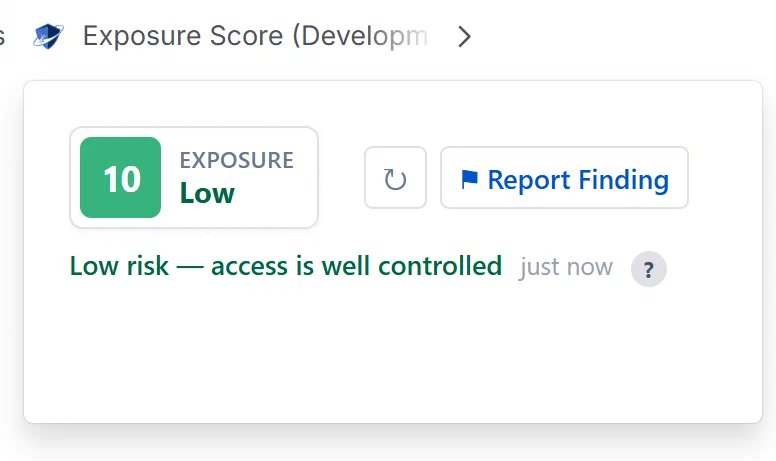
The Confluence content byline slot is capped at approximately 288px wide by the platform. The byline is designed in two rows to fit within this constraint. The exact layout depends on the score, classification, and finding count present.
Every Confluence page has a “…” (more actions) menu in the top-right corner of the page. When Aegis is installed, a Report Security Finding option appears in this menu.
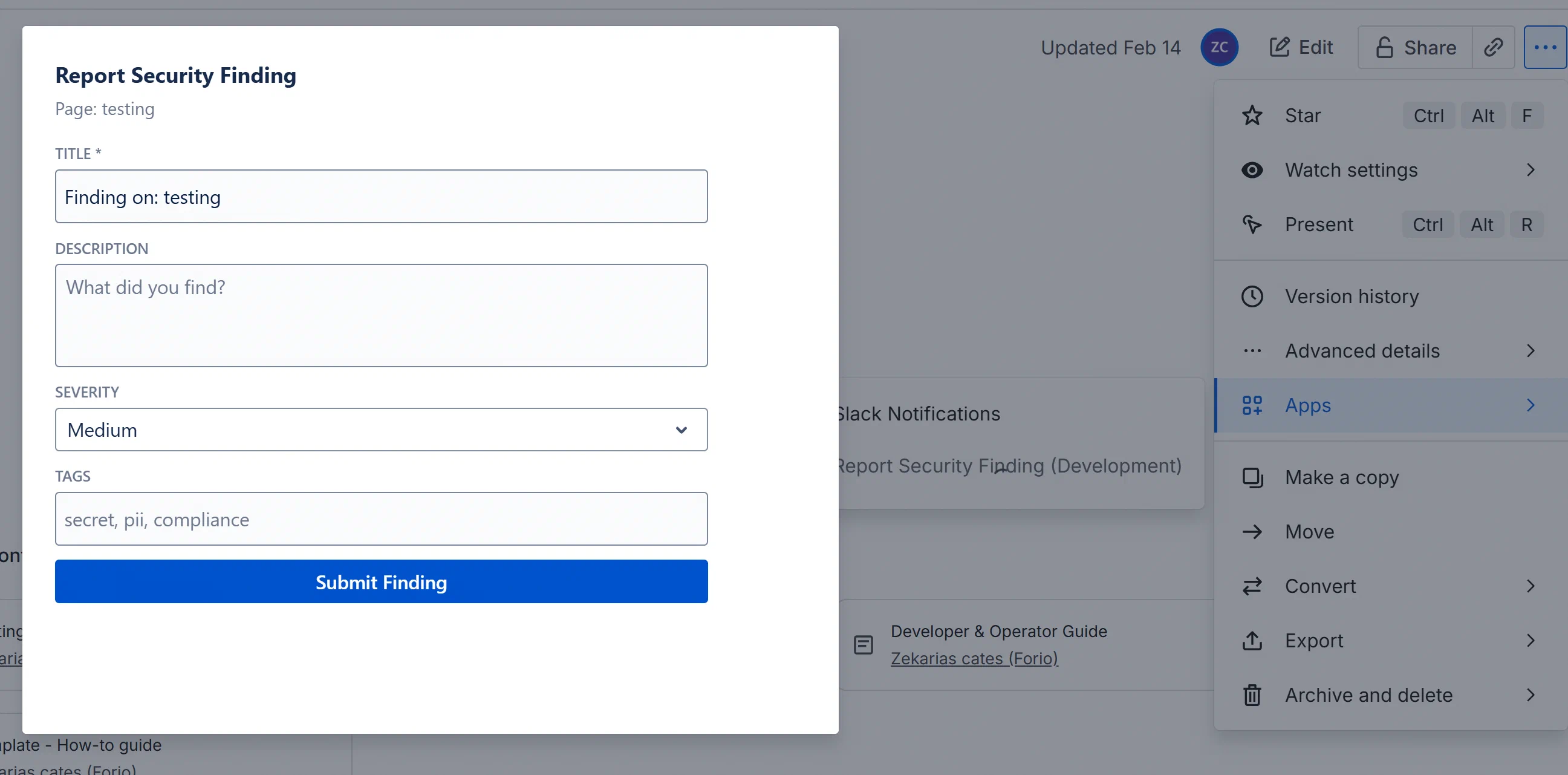
confluence:contentAction Forge module surface) with a form:Submitting the form creates a finding entity with:
Source: 'manual'affectedContentId: The page ID of the current page (automatically populated from context).affectedSpaceKey: The space of the current page.reportedBy: The Confluence account ID of the user who submitted.Status: 'open'Any Confluence user can access the “Report Security Finding” menu option and submit the form. No Aegis role is required to report a finding. This is by design, security reporting should be accessible to everyone who encounters an issue.
The finding creation resolver requires at minimum no role (it uses the getContentContext zero-API-call resolver to populate context, and createFinding is accessible to all authenticated users).
Note: Findings created via this action are visible in the Findings tab of the main dashboard. Analysts can triage and investigate them like any other finding.
finding_created is appended to the audit log.