Title here
Summary here
The Access Explorer answers the question: “Who can access this Confluence page or space, why can they access it, and how risky is that access?” It aggregates and scores permission data from Confluence’s space permissions and page restrictions APIs, presenting the results in a structured, actionable analysis.
Unlike the exposure score on the content byline (which shows a cached score), the Access Explorer runs a fresh analysis on demand and provides the full breakdown of every factor contributing to the risk score.
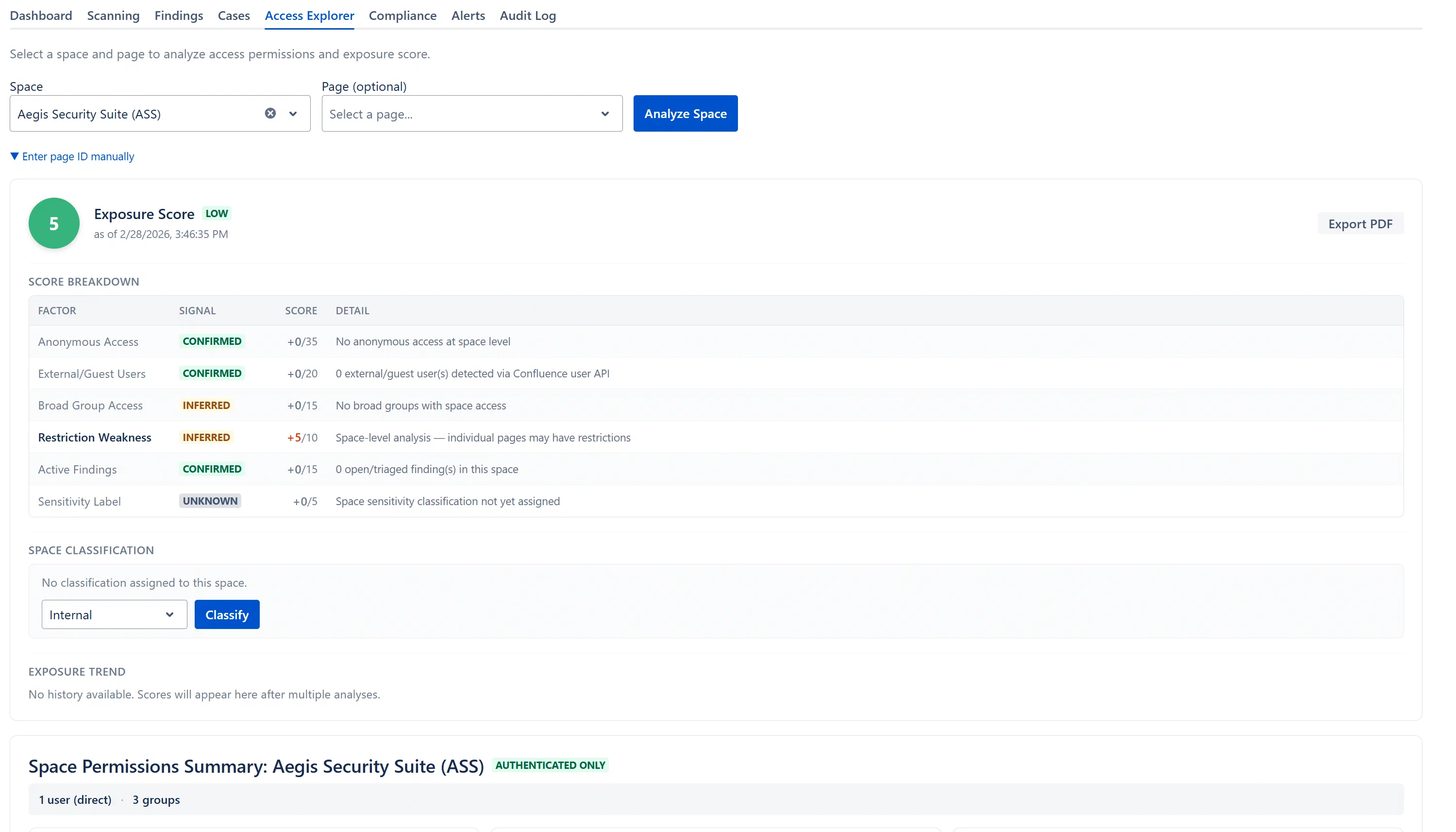
The exposure score is a 0–100 composite risk score computed for a Confluence page or space. It is not a direct count of users or groups, it is a weighted assessment of how risky the access configuration is from a security perspective.
Score bands:
| Range | Band | Color |
|---|---|---|
| 0–24 | Low | Green |
| 25–49 | Moderate | Yellow |
| 50–74 | High | Orange |
| 75–100 | Critical | Red |
A score of 0 does not mean the page is inaccessible, it means none of the six risk factors are currently active for that page. A score of 100 means every factor is contributing at full weight (extremely rare, would require anonymous access + external users + broad groups + no restrictions + open findings + restricted classification, all simultaneously).
The score is displayed as a large circular badge with the risk band as a color-coded lozenge alongside it. Below the score, the classification level (Public / Internal / Confidential / Restricted) of the page or space is shown as an additional lozenge.
The snapshot timestamp (“as of [date/time]”) indicates when this score was computed. If the score is cached from a previous analysis, “(cached)” appears next to the timestamp.
Method 1. Space and Page dropdowns (recommended):
Method 2. Manual Page ID (fallback):
...pageId=12345678)Note: The manual page ID option is available for cases where a page does not appear in the page dropdown (e.g., very large spaces with more pages than the dropdown loads, or restricted pages not listed via the API).