Title here
Summary here
These are two distinct, independent systems that are sometimes confused:
Alert Rules (managed in the Alerts tab, Dashboard view):
alert-record entities visible in the Alerts tabNotification Channels (managed in Admin > Notifications):
integration-config entities; fired via routeEvent() when events occurdelivery-attempt entities visible in the notification bell and the Delivery LogBoth systems can coexist. A user who has both a matching alert rule and a matching notification channel configured will receive two separate notifications for the same event, this is intentional.
Note: For most users, Notification Channels (Admin > Notifications) are the primary way to receive real-time alerts about security events. Alert Rules add threshold-based conditions on top of that.
The main section of the Alerts tab shows a list of triggered alert records. Each alert record represents one instance of an alert rule being triggered.
Toolbar:
Alert record columns (displayed as cards, not a table):
| Field | Meaning |
|---|---|
| Status lozenge | Open (red) / Acknowledged (orange) / Resolved (green) |
| Rule name | The name of the alert rule that triggered this alert |
| Space | The Confluence space key associated with this alert (for space-scoped rules) |
| Timestamp | When the alert was created |
| Message | Human-readable description of what triggered the alert |
| Affected pages | For score_increase alerts: list of pages showing previous score → current score → delta |
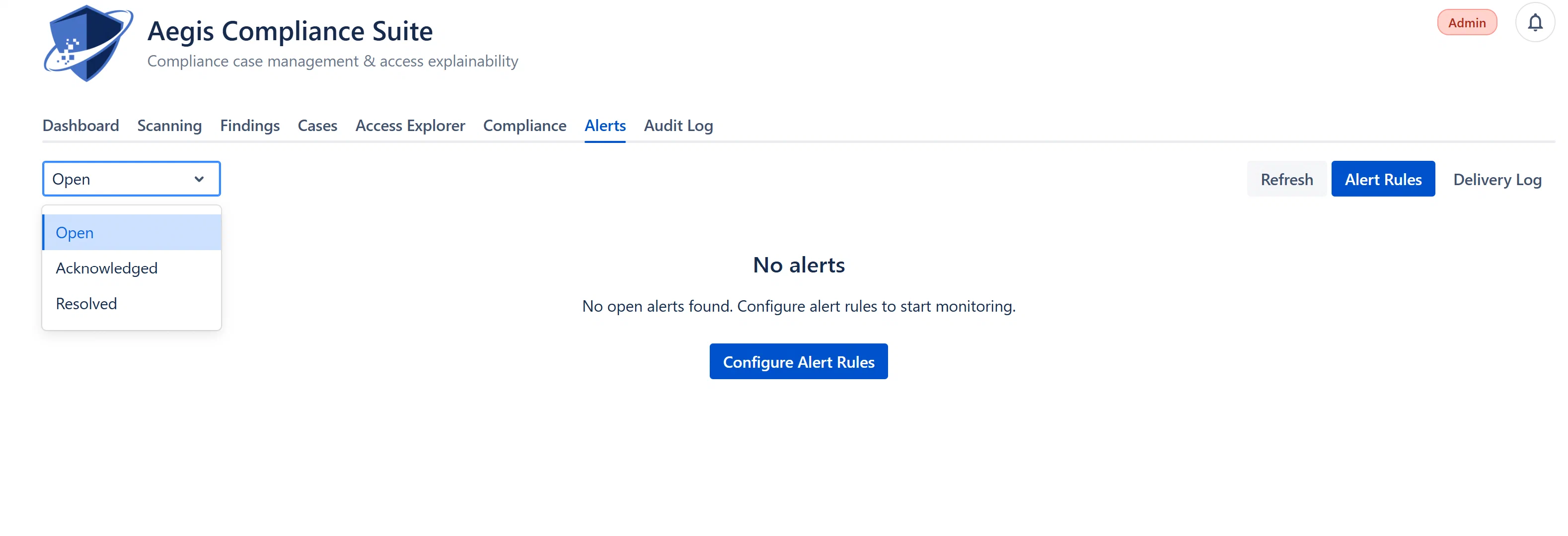
| Status | Meaning |
|---|---|
| Open | Alert has fired and has not been acknowledged. Requires attention. |
| Acknowledged | A team member has seen and acknowledged the alert. Investigation may be in progress. |
| Resolved | The alert has been addressed. The underlying condition may or may not still be active. |
Acknowledgment signals that the alert has been seen and is being investigated. It does not mean the underlying issue is resolved.
Acknowledge is available to Analysts, Approvers, and Admins.
Resolution signals that the alert has been addressed (the underlying issue mitigated or determined to be a false positive).
Resolved alerts are not deleted, they are retained for the configured retention period (default 180 days) and appear in the Audit Log as evidence.