Title here
Summary here
The score_increase trigger type is the most complex alert rule. It is evaluated by the hourly alert evaluation job rather than firing synchronously:
threshold value (default: 20 points), the rule firesReading a score increase alert:
Exposure score increased by 28 points across 2 page(s). Threshold: 20.

Affected pages:
- Content 12345678: score 31 → 59 (+28)
- Content 87654321: score 45 → 67 (+22)
Important constraint: The score_increase trigger requires explicit space keys, it will not fire if allSpaces: true is set. This prevents the hourly job from evaluating potentially thousands of spaces. Always specify the space keys you want monitored for score drift.
The following alert trigger types fire immediately when the event occurs, rather than waiting for the hourly job:
| Trigger | When it fires |
|---|---|
new_finding | Any new finding is created (manual, CSV, or scanner) |
critical_finding | A new critical-severity finding is created |
high_finding | A new high-severity finding is created |
sla_breach | A case’s SLA deadline passes (detected by daily job, near-synchronous) |
scan_complete | A content scan transitions to idle |
new_case | A new case is created |
classification_change | A space or page classification label is set or changed |
These inline alerts bypass the hourly job entirely. The alert record is created within seconds of the triggering event.
Admin users see an Alert Rules panel at the top of the Alerts tab. The rules panel shows all configured rules with their status, trigger type, cooldown, and scope.
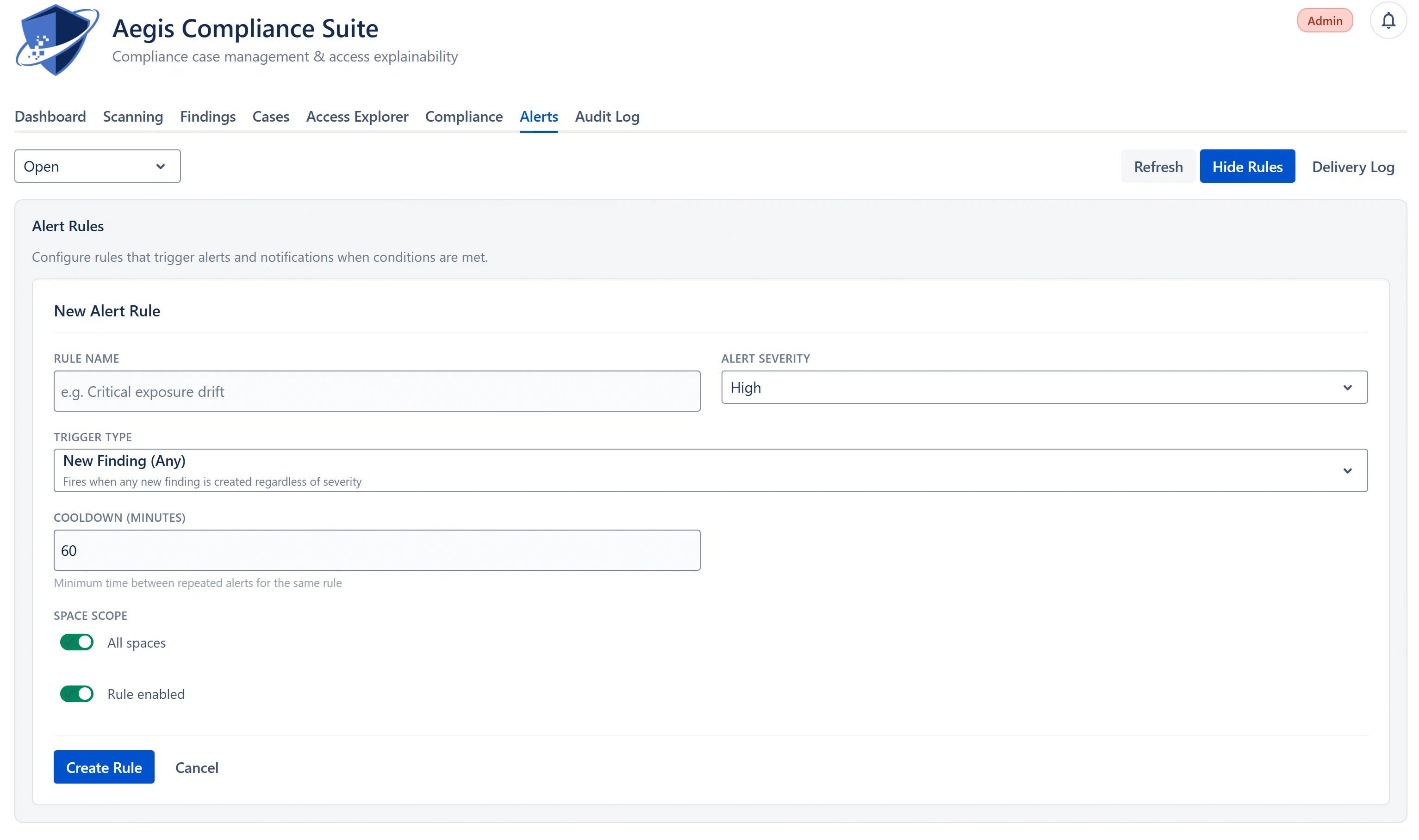
Creating a new rule:
score_increase; the minimum point increase to triggerFINANCE, LEGAL, HR) for specific scope. Required for score_increase.Editing a rule: Click Edit on any existing rule. The form pre-fills with current values.
Toggling a rule: Click the toggle switch on any rule to enable or disable it without deleting or editing.
Deleting a rule: Click Delete on any rule card. No confirmation dialog, deletion is immediate.
Admins can access the Delivery Log via the “Delivery Log” button in the toolbar. This shows all delivery-attempt entities, the records of in-app notification delivery.
Delivery attempt columns:
| Field | Meaning |
|---|---|
| Status lozenge | UNREAD / READ / DISMISSED (notification statuses) or failed/dead-letter (delivery failures) |
| Destination type | “in-app” |
| Timestamp | When the delivery was attempted |
| Event type | The event that triggered this delivery |
| Error | Error message if delivery failed |
Retry: Failed or dead-letter delivery attempts have a Retry button. Clicking it resets the delivery status to UNREAD, making the notification visible again in the recipient’s bell panel.
When to use the delivery log: If a user reports they are not receiving expected notifications, check the delivery log to see if delivery attempts are being created and whether any are failing. Failures typically indicate a configuration issue (e.g., missing destination in the channel config).