Title here
Summary here
A case is a tracked remediation effort, the unit of work your team uses to drive a security issue from discovery to resolution. Cases are distinct from findings: a finding is an observation of a problem; a case is the managed response to one or more problems.
Cases allow you to:
A single case can group multiple findings. For example, if a content scan detects five AWS keys across three pages in the same space, a single case, “Credential Exposure in Engineering Space”, can reference all five findings and be assigned to one owner.
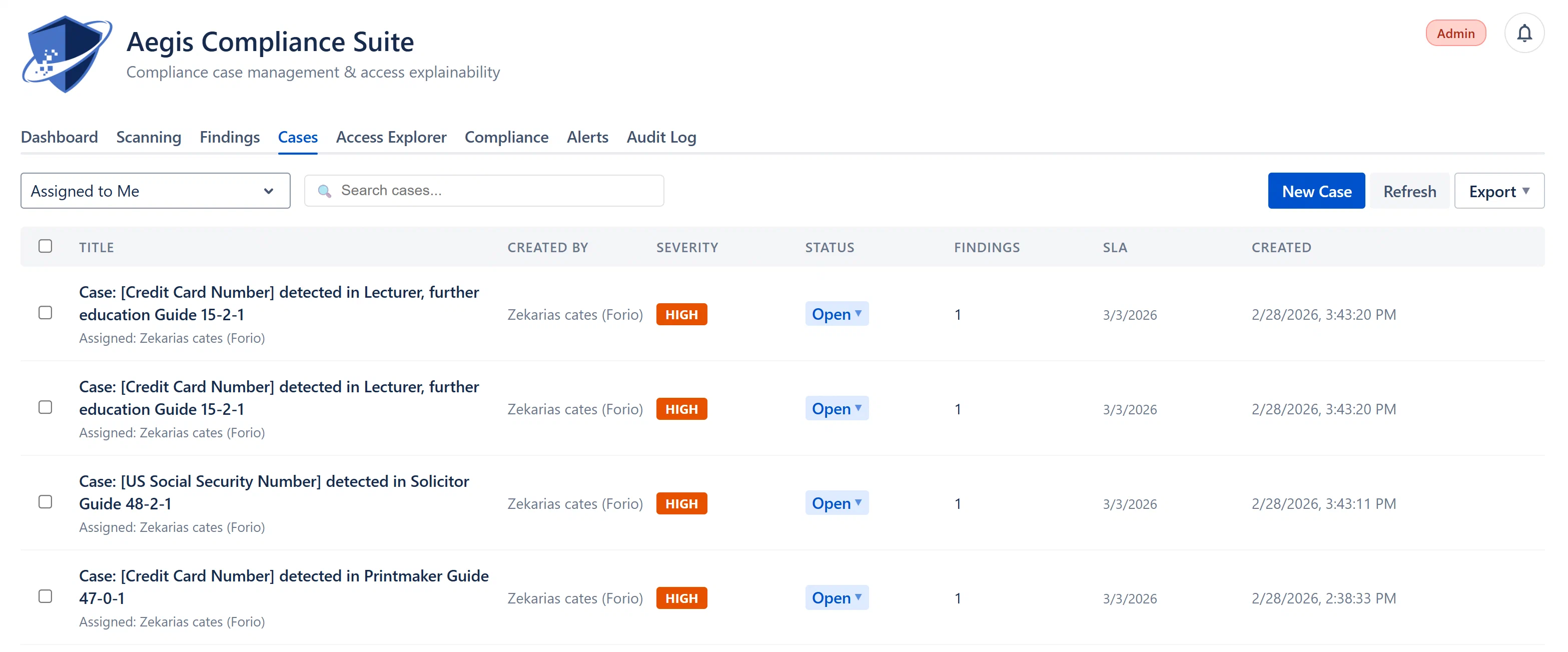
| Field | Description |
|---|---|
| Title | Short descriptive name for the remediation effort |
| Severity | Critical / High / Medium / Low, derived from the worst linked finding, or set manually at creation |
| Status | Open / In Progress / Remediated / Closed / Exception, see lifecycle below |
| Assignee | The Confluence user responsible for remediating this case |
| SLA Deadline | Calculated at creation: now + SLA hours for severity. Defaults: Critical 24h, High 72h, Medium 168h (7 days), Low 720h (30 days). Configurable in Admin > Scoring & SLA. |
| SLA Breached | Boolean flag set by the daily SLA-check job when slaDeadline < now and the case is not closed |
| Created At | Timestamp when the case was created |
| Updated At | Timestamp of the most recent mutation to the case |
| Linked Findings Count | Number of findings attached to this case |
| Jira Issue Key | If Jira integration is enabled and a ticket was created, shows the issue key (e.g., SEC-42) with a link to browse the issue |
| Description | Free-text detail about the remediation scope and context |
| Reporter | The Confluence account that created the case |
Cases move through a defined set of statuses. Invalid transitions are rejected by the server.
Open ──────────────────────────► In Progress
  │                                    │
  │                                    ▼
  │                              Remediated
  │                                    │
  ├─────────────────────────────► Closed ◄─────────────────────────────┤
  │                                                                      │
└──────► (Exception requested) ──► Exception ──────────────────────────┘| Status | Meaning | Valid Next Statuses |
|---|---|---|
| Open | Newly created, not yet being worked | In Progress, Closed |
| In Progress | Actively being remediated | Remediated, Exception, Closed |
| Remediated | Fix applied, pending verification | Open, Closed |
| Closed | Fully resolved and verified | Open (can re-open) |
| Exception | Risk formally accepted via approved exception | Open, Closed |
Exception path: A case moves to the “Exception” status only after a risk exception is submitted and approved by an Approver. The case cannot be manually moved to Exception status using the status dropdown, only the exception approval workflow triggers this transition.
Changing status inline: Analysts and above can change a case’s status directly from the Cases list view using the quick-action dropdown in the Status column. Click the current status badge to reveal a dropdown of valid next statuses. The change is saved immediately.