List View & Filtering

SLA Breach

What it means: The case’s SLA deadline has passed and the case has not been closed. The daily maintenance job (running every 24 hours) identifies breaches and marks the slaBreached flag.

Visual indicators:

  • In the list view: the SLA column shows a bold red BREACHED lozenge instead of the deadline date
  • In the case detail modal: the SLA field in the sidebar shows “Breached” in red bold text
  • The header row shows a “SLA Breached” badge next to the case title and severity

What to do when a case is breached:

  1. Open the case detail to review what remediation has been attempted
  2. Reassign to a more available team member if necessary
  3. Update the status to In Progress if work has started
  4. Consider submitting a risk exception if remediation is not feasible within the original timeline
  5. Close the case if remediation is already complete

Note: Clearing the breach flag requires closing the case. There is no manual “clear breach” action. Once a case is breached, the badge persists until the case transitions to Closed.


Filtering and Searching Cases

The toolbar at the top of the Cases tab provides two filtering mechanisms:

Status filter (dropdown): Select from:

  • Assigned to Me, shows only cases where you are the assignee (default view)
  • All, all cases regardless of status
  • Active (Open + In Progress), cases requiring attention
  • SLA Breached, cases past their deadline
  • Open, In Progress, Remediated, Exception, Closed, individual status filters

Search bar (free text): Searches case Title, Severity, and Status fields in real time. Results update as you type.

These two filters work together. For example: set the dropdown to “Active” and type “engineering” in the search bar to find active cases with “engineering” in the title.
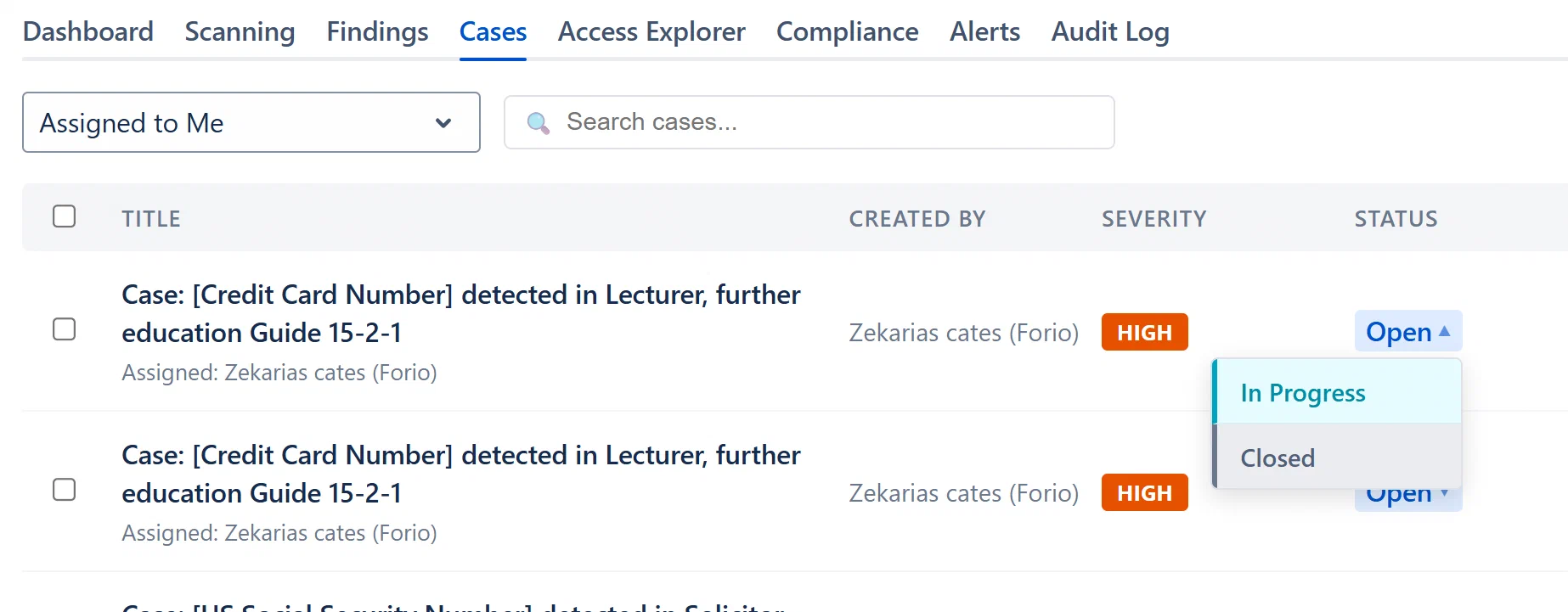
Cases toolbar showing the status filter dropdown expanded with all options visible, and the search bar with text entered


Case List View

The cases list is a row-based table. Each row represents one case. Columns are:

ColumnContent
CheckboxSelect for bulk actions (Analyst+ only)
TitleCase title in bold; assignee name shown below in muted text
Created ByDisplay name of the reporter
SeverityColored badge: Critical (red), High (orange), Medium (blue), Low (green)
StatusQuick-action dropdown (Analyst+) or static badge (Viewer)
FindingsCount of linked findings
SLADeadline date OR bold red “BREACHED” lozenge
CreatedRelative timestamp

Click anywhere on a row to open the Case Detail modal.

Pagination: Cases are paginated at 15 rows per page. The page indicator shows “Page X of Y (N cases)”. Use Previous / Next buttons to navigate.


Creating a New Case

  1. Click New Case in the toolbar (Analyst+ only)
  2. The Create Case modal appears with the following fields:
    • Title (required): Descriptive name
    • Description: Context about the remediation scope
    • Severity: Critical / High / Medium / Low
    • Assignee: Optional, search by display name (2+ characters)
    • Linked Findings: Select one or more findings to attach at creation
  3. Click Create
  4. The case appears in the list with its calculated SLA deadline
  5. If severity is Critical or High and Jira auto-create is configured, a Jira ticket may be created automatically