Title here
Summary here
A finding is the fundamental record of a detected or reported security issue in your Confluence environment. It represents a specific problem on a specific page (or within a space) that requires review, triage, and eventual remediation or dismissal.
Findings exist independently of cases, a finding can exist without ever being escalated to a case. However, when a finding represents a risk that requires coordinated remediation effort, escalating it to a case provides the workflow structure (assignee, SLA, comments, exceptions) needed to track resolution to completion.
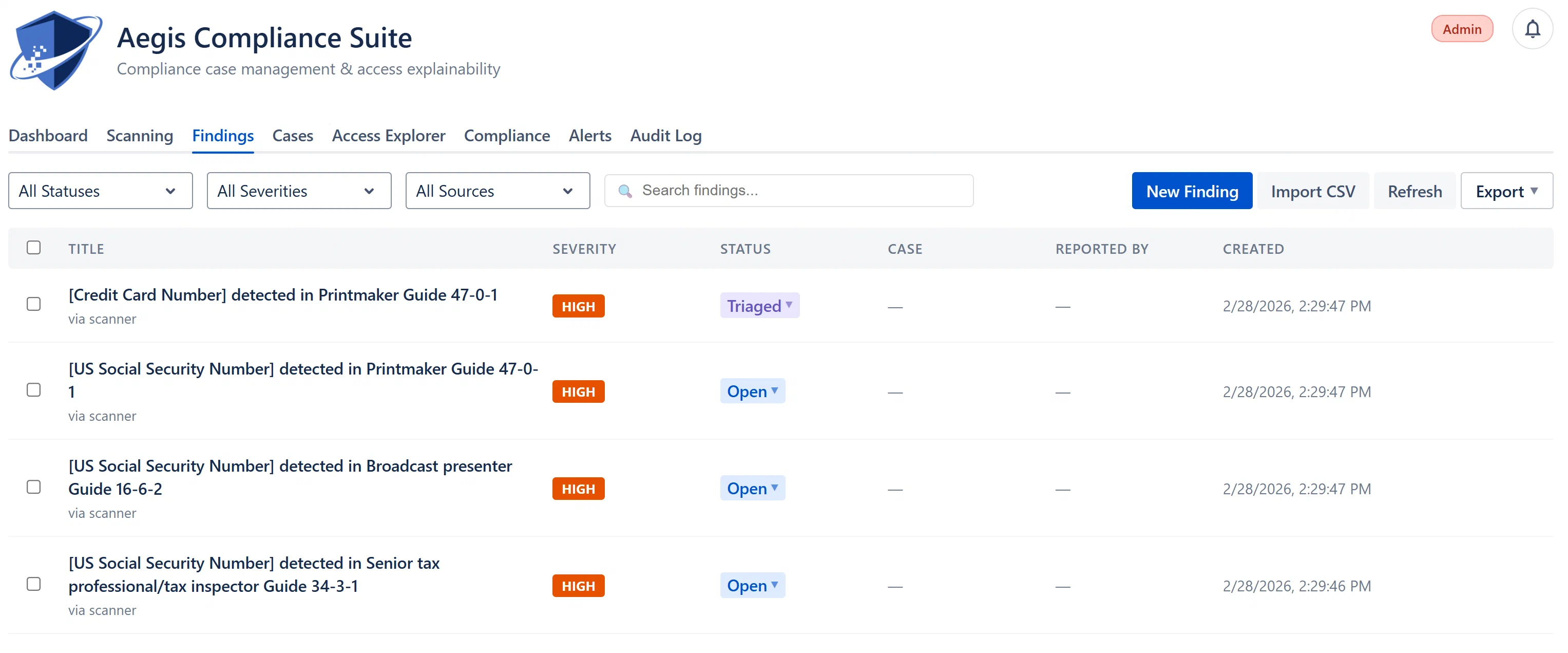
Every finding has the following fields:
| Field | Description | Values |
|---|---|---|
| Title | A short description of the issue. For scanner findings, generated from the detector name and affected page. For manual findings, entered by the reporter. | Free text |
| Severity | How critical the issue is. | Critical, High, Medium, Low, Info |
| Status | Current lifecycle state. | Open, Triaged, Resolved, Dismissed |
| Source | How the finding was created. | Scanner, Manual, CSV |
| Affected Page | The Confluence page ID (and title if resolvable) where the issue exists. | Page ID / title |
| Space Key | The Confluence space key containing the affected page. | Space key (e.g., “ENG”) |
| Reported By | The user or system that created the finding. “Aegis Scanner” for scanner findings; a user’s display name for manual and CSV findings. | User display name or system label |
| Created At | When the finding was first created. | ISO timestamp, displayed as localized date/time |
| Tags | Optional labels for categorizing findings (e.g., “pii”, “gdpr”, “external”). | Comma-separated strings |
| Description | Optional free-text details about the issue. For scanner findings, may include context about the detector that triggered. | Free text |
| Case ID | If the finding has been linked to a case, shows the first 8 characters of the case UUID as a clickable link. | Case UUID prefix or empty |
| Jira Issue Key | If a Jira ticket was created from this finding (and Jira integration is enabled), shows the issue key (e.g., “SEC-42”) as a link. | Jira issue key or empty |
| Detector Name | For scanner findings: which detector triggered the match (e.g., “aws-key”, “credit-card”). | Detector ID or empty |
| Match Count | For scanner findings: how many times the pattern matched on the page. | Integer or empty |
| Last Seen At | For scanner findings: when the detector last confirmed the match is still present. | ISO timestamp or empty |
| Reopened At | If the finding was resolved and then re-detected by the scanner, the timestamp of when it was reopened. | ISO timestamp or empty |
| Severity | Color | Meaning | Typical Response Time |
|---|---|---|---|
| Critical | Dark red | Immediate risk to confidentiality or security. Examples: live AWS access keys, private SSH keys, unmasked credit card numbers on a public page. | Investigate within hours; create a case immediately. |
| High | Orange | Significant risk that should be addressed urgently. Examples: API tokens with broad access, SSNs on an internal page, authentication credentials. | Address within 1–3 days. |
| Medium | Blue | Moderate risk. Examples: OAuth tokens for low-privilege services, email addresses on pages with broad access, PII on internal pages. | Address within a week. |
| Low | Green | Minor or informational risk. Examples: generic patterns that may or may not be sensitive, old or rotated tokens. | Address within a month; consider dismissing if not relevant. |
| Info | Gray | Informational only. Not a direct risk but worth being aware of. Only applicable to manually created findings. | No specific SLA; review periodically. |
Note: Severity levels on scanner findings are set by the detector configuration (each detector has a pre-configured default severity). Severity on manually created findings is chosen by the reporter. Severity can always be edited after creation.
| Status | Color | Meaning |
|---|---|---|
| Open | Blue | The finding has been created but not yet reviewed. This is the initial state for all new findings. |
| Triaged | Purple | A team member has reviewed the finding and confirmed it is a real issue under investigation. The finding is in the queue to be remediated. |
| Resolved | Green | The underlying issue has been fixed. For scanner findings, a subsequent scan will verify the fix, if the same content is detected again, the finding will automatically reopen. |
| Dismissed | Gray | The finding has been intentionally closed without remediation. This is used for known false positives, accepted risks (for low-severity findings), or findings that are not applicable to your environment. A dismissed finding will NOT be reopened by the scanner even if the same content is detected again. |
| Reopened | Orange badge | A special display state: the finding was previously Resolved but was re-detected by the content scanner in a subsequent scan. The status is “Open” but a “Reopened” badge is shown alongside a “Scanner Reopened” lozenge. |
Warning: Use Dismissed carefully. Once dismissed, the scanner will permanently suppress that specific finding (based on content hash) and will not alert on it again. Only dismiss findings you are certain are false positives or explicitly accepted risks. If you are unsure, use Resolved after applying a fix, which will allow the scanner to reopen it if the issue recurs.