Title here
Summary here
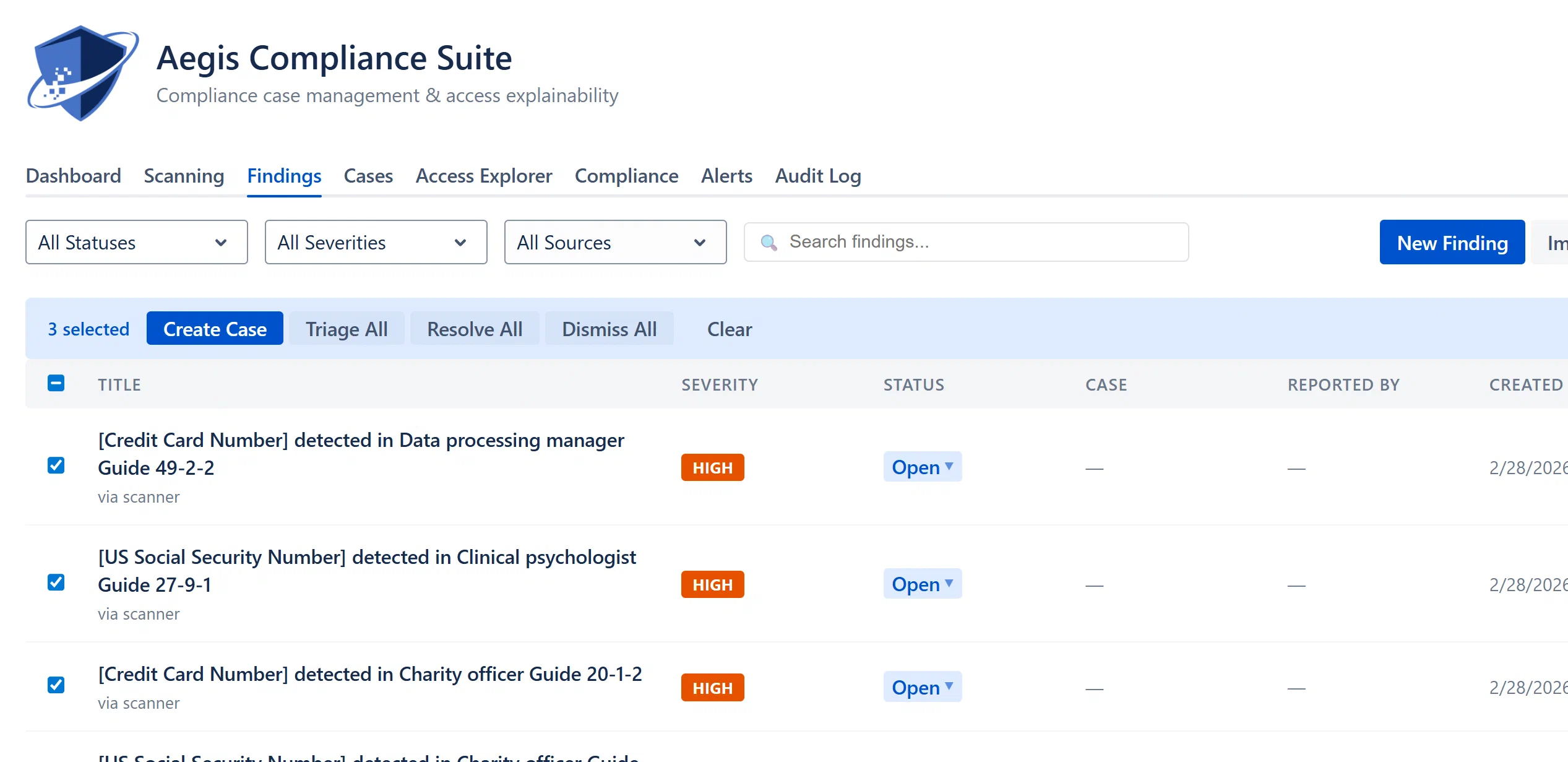
Select one or more findings using the checkboxes in the leftmost column. Once at least one finding is selected, a bulk action bar appears above the table with the following buttons:
| Action | Description |
|---|---|
| Create Case | Opens the Create Case modal with all selected findings pre-linked to the new case. |
| Triage All | Sets all selected findings to Triaged status in one operation. |
| Resolve All | Sets all selected findings to Resolved status in one operation. |
| Dismiss All | Sets all selected findings to Dismissed status in one operation. |
| Clear | Deselects all selected findings and hides the bulk bar. |
The header checkbox (in the table header row) selects all findings on the current page. It shows as an indeterminate state (a dash) when some but not all findings are selected.
Warning: Bulk status changes are irreversible in one click. For example, “Dismiss All” will dismiss all selected findings simultaneously. There is no undo operation, you would need to reopen each finding individually using the “Reopen” quick action.
The Findings table paginates at 15 findings per page. When the filtered list has more than 15 findings, a pagination bar appears below the table showing:
Page navigation resets to page 1 whenever you change a filter or the search query.
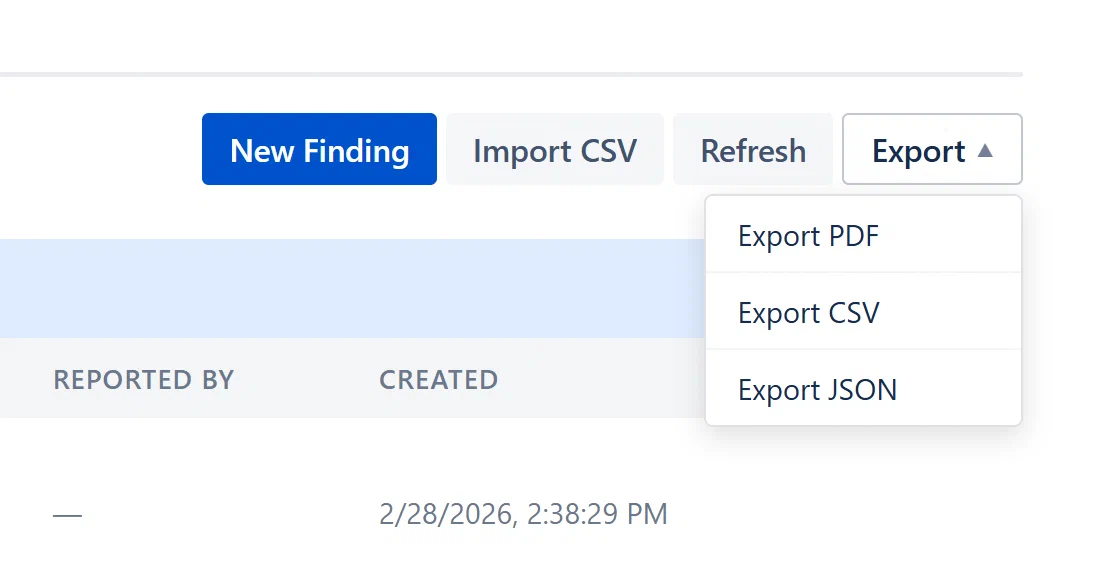
The Export dropdown in the toolbar offers three formats for the currently filtered and visible findings:
| Format | Description | Use Case |
|---|---|---|
| Export PDF | Landscape PDF via jsPDF, with severity color-coding (red/orange/blue/green/gray rows), filter summary in the header, alternating row shading, and page footers. | Sharing a printable findings report with stakeholders or including in an audit package. |
| Export CSV | Comma-separated file with all fields for each finding in the filtered set. | Loading into Excel, Google Sheets, or a BI tool for further analysis. |
| Export JSON | Full JSON export with complete field data for each finding. | Programmatic processing, archiving, or importing into another tool. |
The Export button is disabled (greyed out) when no findings match the current filter.
If your Admin has configured and enabled Jira integration (Admin > Integrations), additional Jira-related features appear in the Finding Detail Modal:
Note: Jira integration requires a one-time connection step in Atlassian Administration (Manage Apps → Aegis Compliance Suite → Connect Jira). No Jira API tokens or credentials are required. Forge handles authentication internally. See Part B of this guide for full Jira integration setup instructions.