Title here
Summary here
Clicking any finding in the Findings table (or in the Recent Findings panel on the Dashboard) opens the Finding Detail Modal: a large overlay that shows all information about the finding and provides action buttons for managing it.
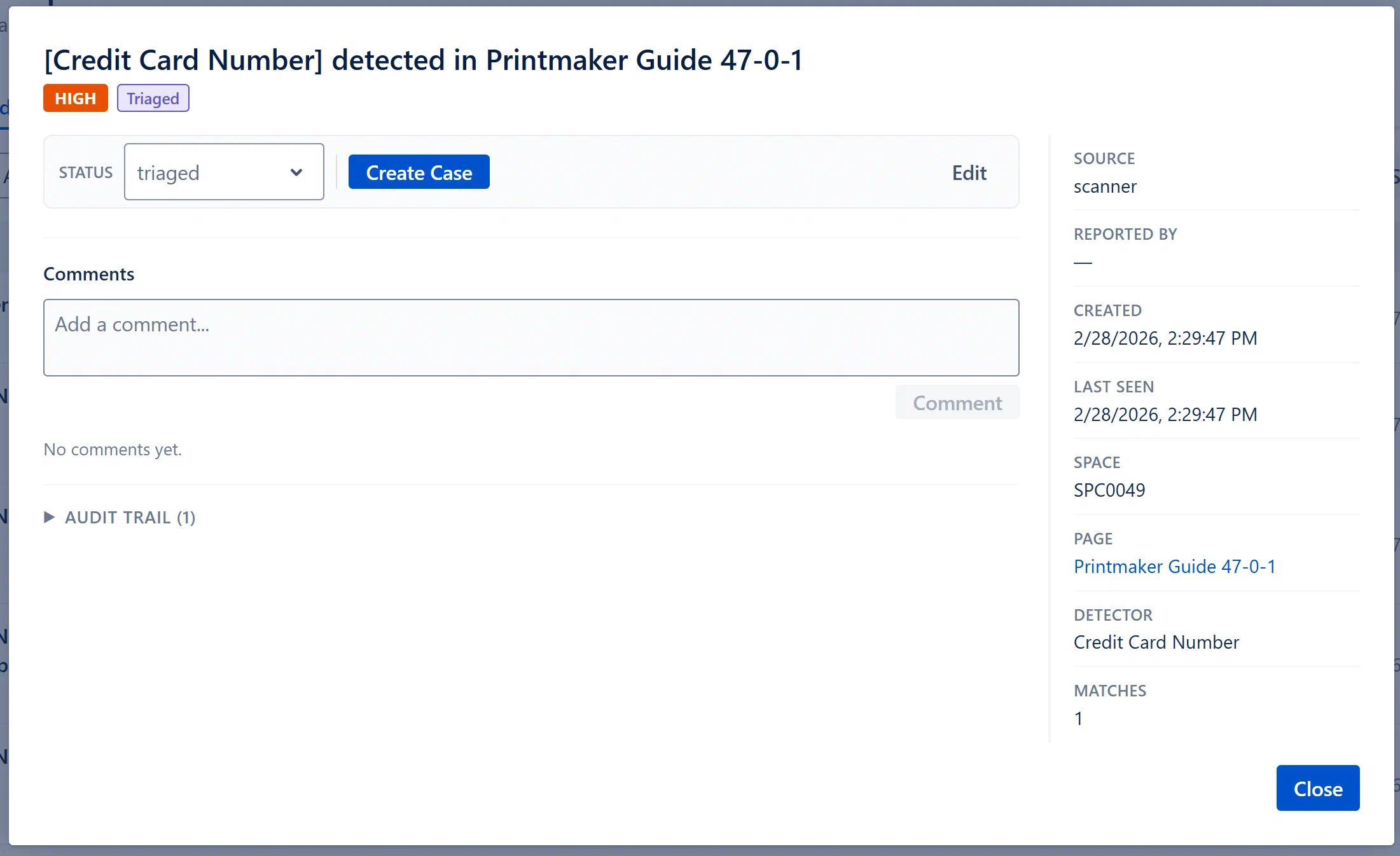
A horizontal action bar appears at the top of the modal body for users with Analyst role or above. It contains:
Status Dropdown:
Create Case Button (if no case linked):
“Case Linked” Badge + “View Case →” link (if a case is already linked):
Create Jira Ticket Button (Analyst+, only if Jira integration is enabled and no ticket yet exists):
Edit Button:
onUpdated to refresh the parent list.Below the action bar:
A CommentsSection component is rendered below the description, allowing users to add threaded comments to this finding. Comments are persisted and visible to all users who can view the finding.
A collapsible “Audit Trail (N)” toggle appears below the comments. Clicking it expands a chronological list of all evidence events for this finding, showing:
The audit trail is collapsed by default to reduce visual noise. The count in parentheses tells you how many events exist without expanding.
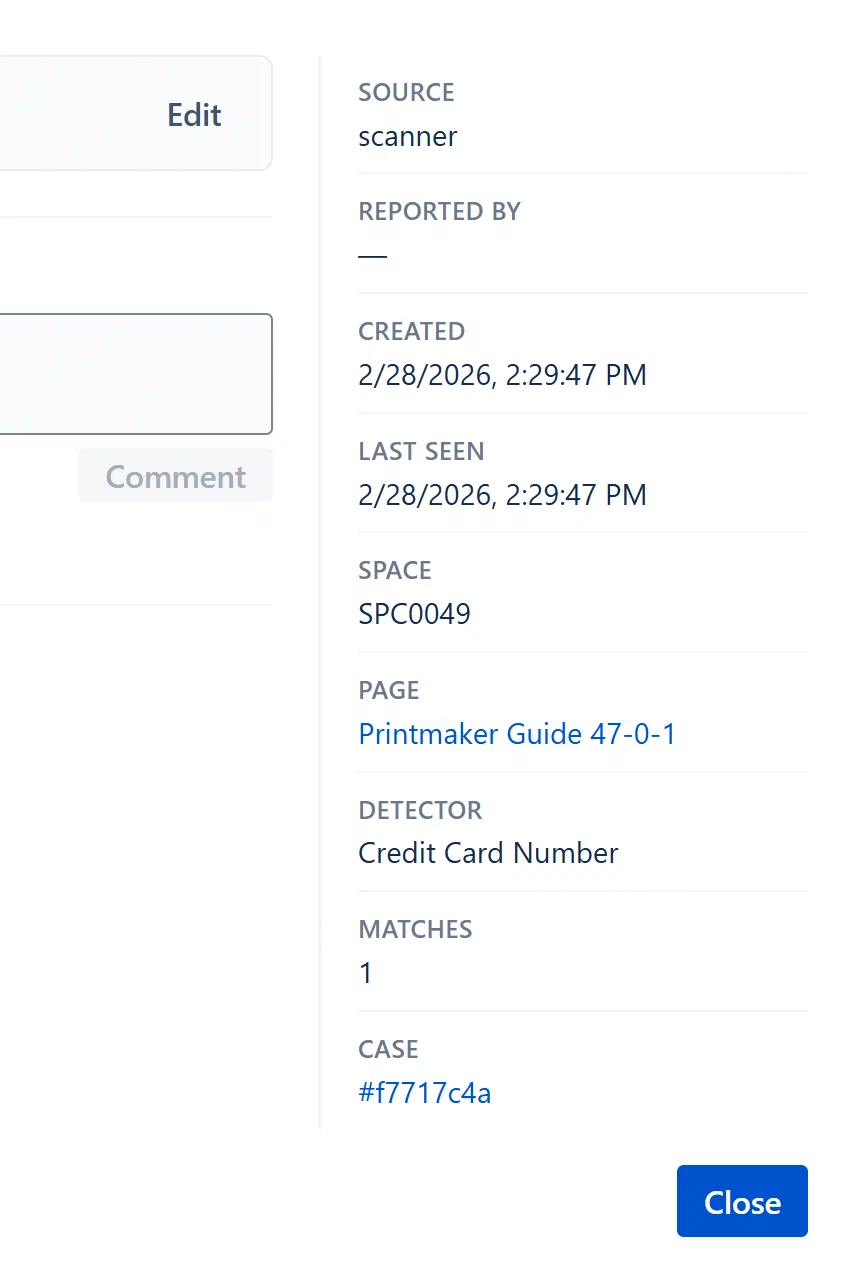
A right sidebar shows structured metadata:
| Label | Value |
|---|---|
| Source | scanner, manual, or csv |
| Reported By | Display name, or “Aegis Scanner” / “System” |
| Created | Full localized date/time |
| Reopened | Date/time when last reopened by scanner (only if applicable) |
| Last Seen | For scanner findings: when the scanner last confirmed the content still matched |
| Space | Confluence space key |
| Page | Confluence page title as a clickable link (navigates to the Confluence page in the same tab) |
| Detector | Detector name for scanner findings (e.g., “aws-key”) |
| Matches | Number of regex matches on the page (for scanner findings with multiple hits) |
| Case | Linked case ID (first 8 chars) as a clickable link (navigates to that case) |
| Jira | Jira issue key as a clickable link (if a ticket exists and Jira is enabled) |