Title here
Summary here
The Scanning tab is the command center for Aegis’s content scanning engine. Content scanning is the process of running pattern-matching (regex) detectors across the body text of all Confluence pages to detect secrets, PII, and other policy violations.
Important design decision: All content scans are manually triggered. There is no scheduled automatic content scan. This is intentional, it gives security teams complete control over when pages are inspected. The hourly permission scan (which computes exposure scores) runs automatically in the background and cannot be disabled.
The Scanning tab is only fully interactive for Admin-role users. Viewers and Analysts can see scan results and history but cannot start or stop scans or toggle detectors.
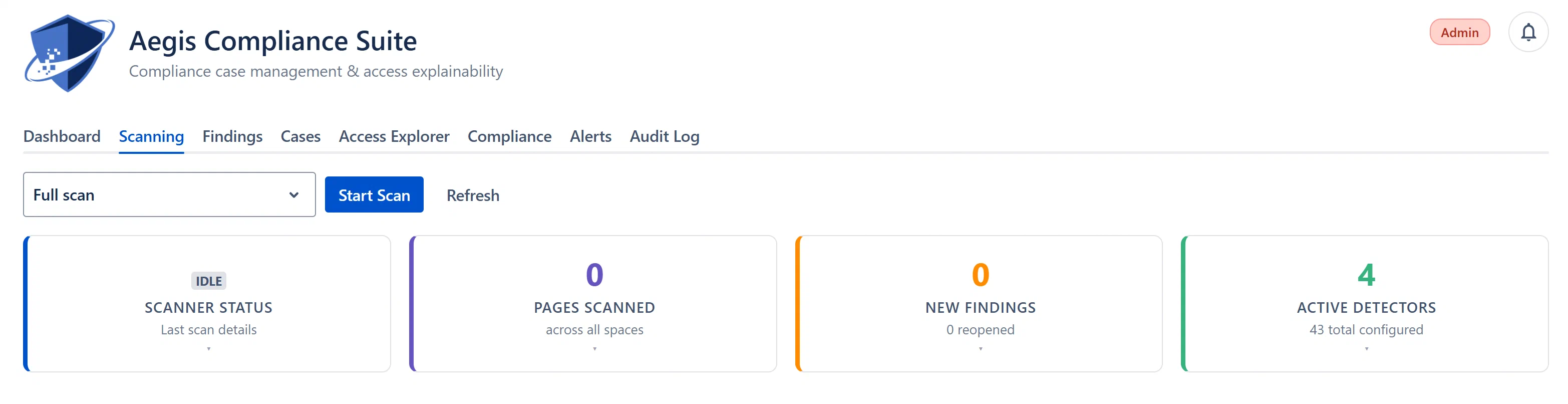
At the top of the Scanning tab (Admin users only), the toolbar contains:
Three scan modes are available:
| Mode | Label | Description | When to Use |
|---|---|---|---|
| Full scan | “Full scan. All pages in every space” | Fetches every page in every Confluence space using the Confluence v2 cursor-based pages API. This is the most thorough scan. | First scan ever; after adding new detectors; monthly baseline scans. |
| Incremental scan | “Incremental scan. Pages modified since last scan” | Uses CQL to fetch only pages with a lastModified date greater than or equal to the date of your last full scan. Significantly faster than a full scan. | Regular weekly or bi-weekly scans to catch newly created or modified content. |
| Space scan | “Space scan. All pages in one space” | Fetches all pages in a single selected Confluence space. When selected, a second “Search by name or key” dropdown appears for you to choose the target space. | Scanning a specific space after a large content migration or after suspicious activity in that space. |
Note: The Incremental scan option is disabled (greyed out) if no previous full scan has been completed. The hint text reads: “No previous scan found, run a Full scan first.” When a previous scan date exists, the hint shows “Pages modified since [date]” to confirm the incremental window.
Note: For Space scans, Aegis loads all available Confluence spaces into the space picker. You can search by space name or space key. The Start Scan button is disabled until a space is selected.
Clicking Start Scan triggers the scan orchestrator, which:
scanEpoch: a timestamp token that uniquely identifies this scan run and is used to prevent stale scan invocations from contributing to the current run’s results.Once started, the button disappears and is replaced by a Pause Scan button.
Appears only while a scan is running. Clicking Pause Scan marks the current scan as paused. Each in-flight consumer invocation checks for the paused state after completing its current space batch and stops gracefully rather than mid-page. The scan can be restarted by clicking Start Scan again.
Forces an immediate re-fetch of the scan status and results. The display automatically polls every 4 seconds while a scan is running, so manual refresh is typically needed only when the scan is idle.