Title here
Summary here
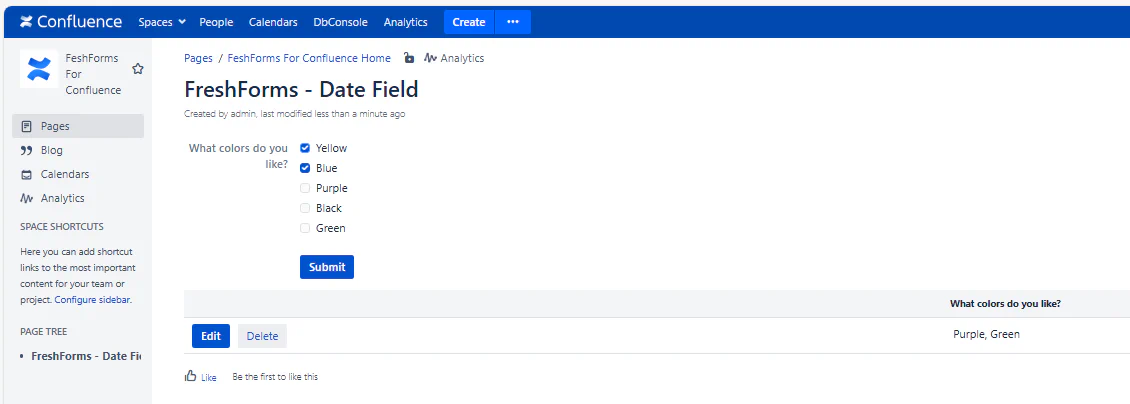
Use Checkboxes when you want users to choose one or more items from a list. This field allows for multi-select input, making it ideal for things like selecting skills, equipment, or preferences where more than one choice may apply.
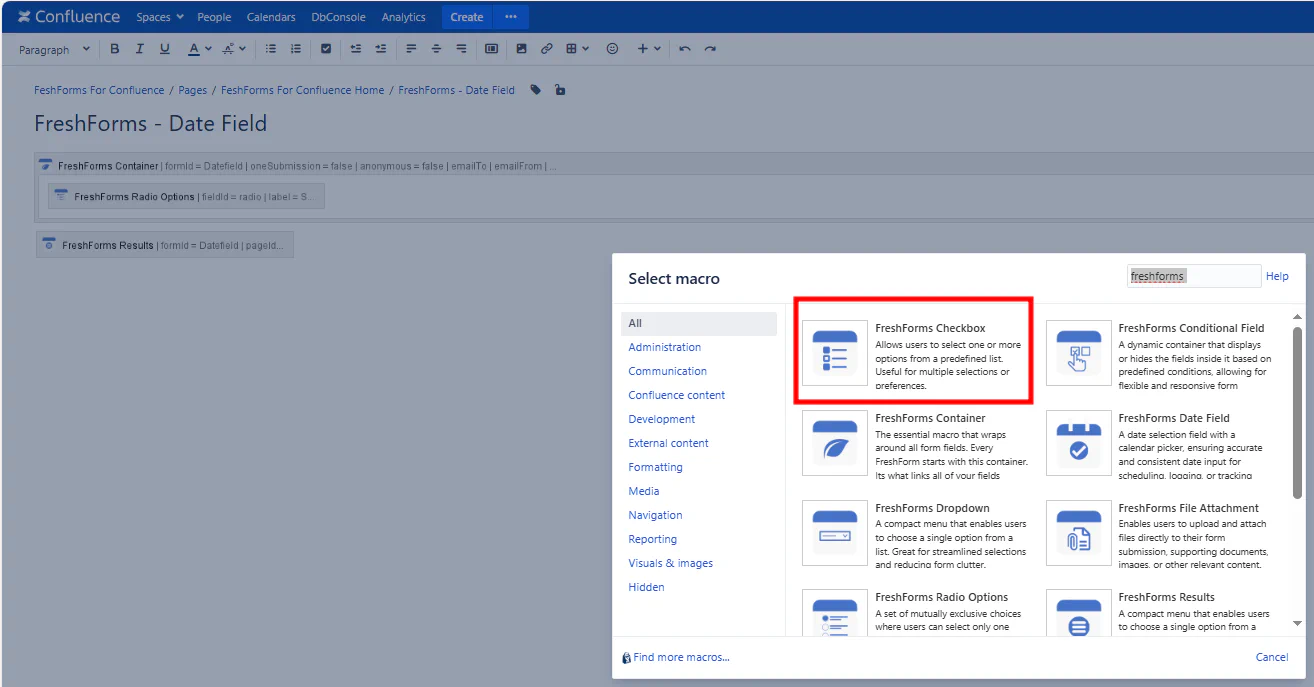
This will insert a FreshForms Checkbox within the Container Macro.
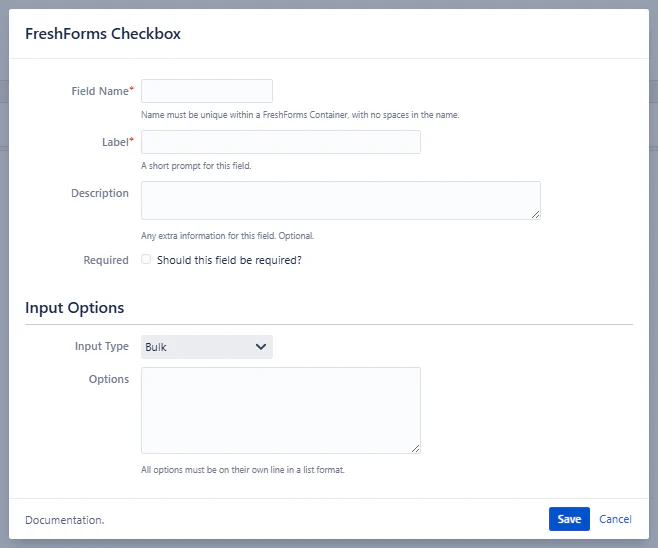
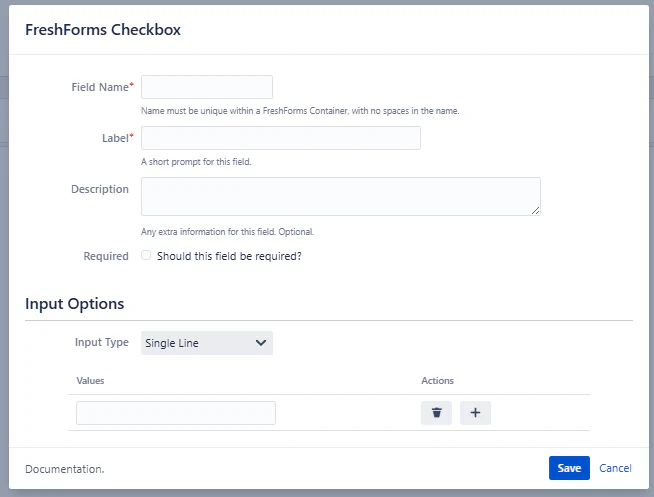
A required internal name to reference and filter this field later. Stick with camelCase or underscores. No spaces or special characters.
Example: selectedDevices, languagesSpoken, interests
The visible heading or question above the checkboxes. This helps guide the user on what they’re selecting.
Example: Which tools do you need?, Select all that apply, Topics you're interested in
Optional helper text shown under the field. Use this to clarify instructions or selection limits.
Example: “You may choose more than one option.”
Makes at least one selection mandatory before the form can be submitted.
You can populate the checkbox options in two ways: