Title here
Summary here
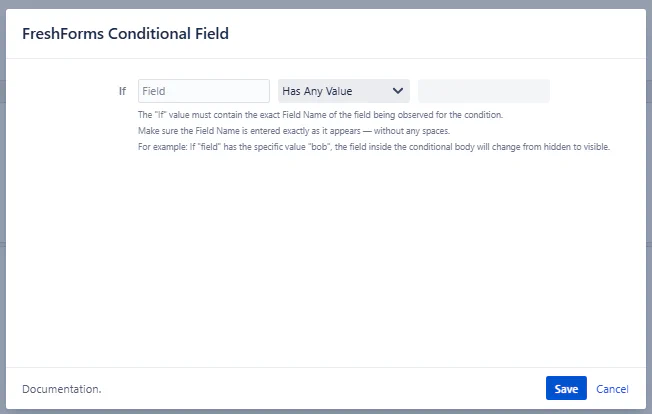
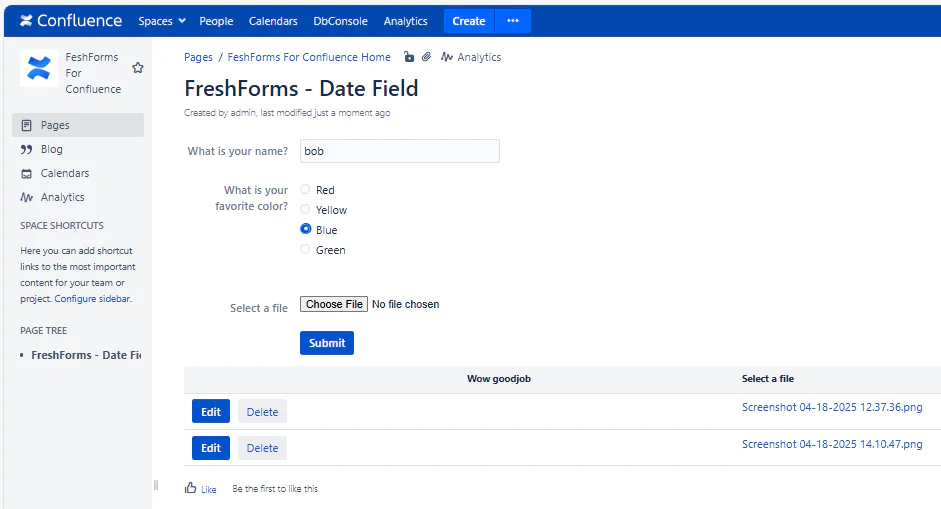
The Conditional Macro allows you to display or hide form fields based on specific conditions. This is helpful for making your forms dynamic, showing only relevant fields depending on previous user input.
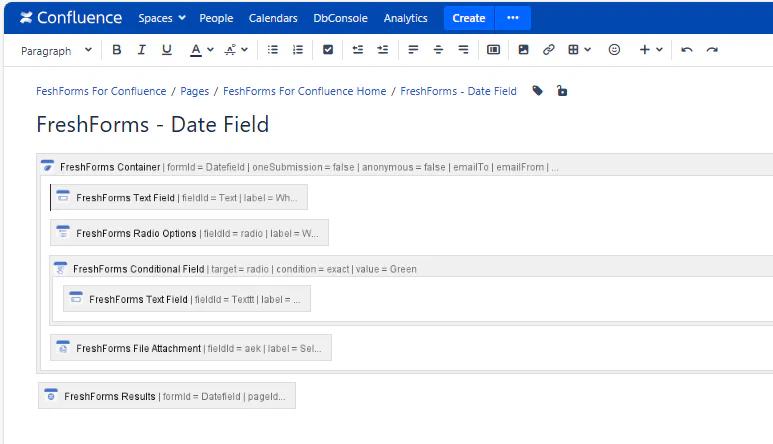
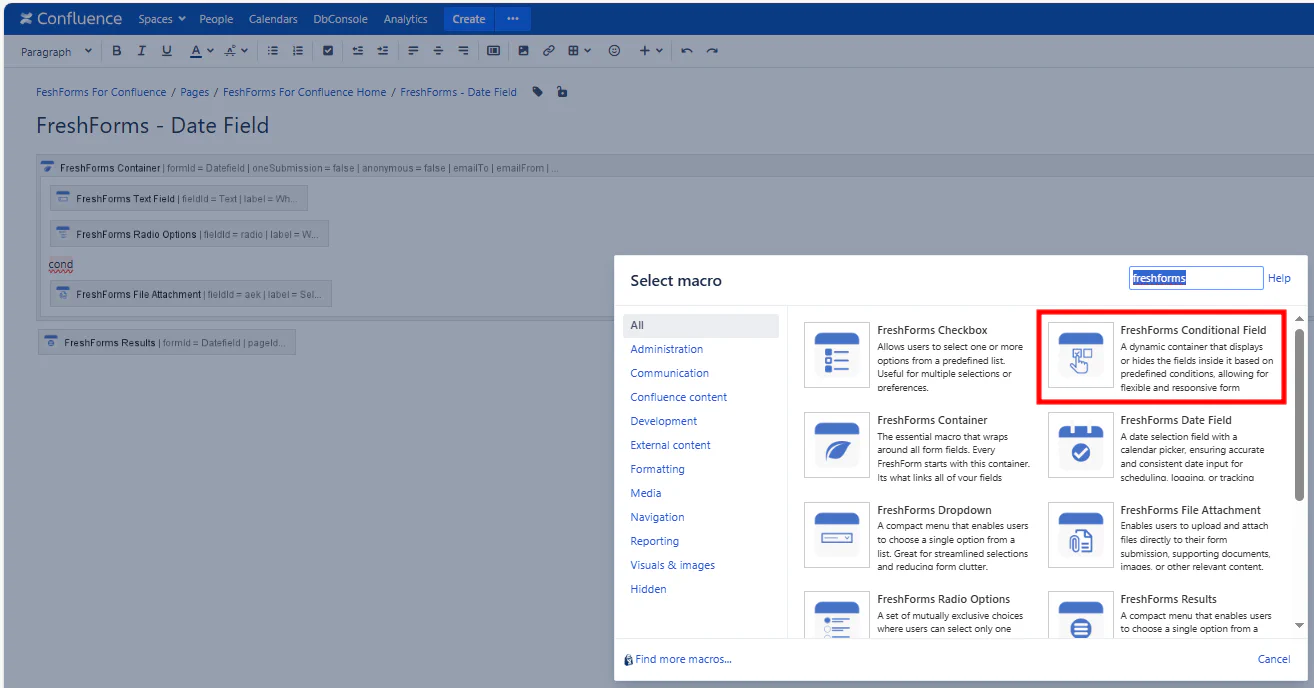
This will insert a FreshForms Conditional Field within the Container Macro.
Required. The name of the field being observed for the condition. Make sure the field name is entered exactly as it appears in your form.
Example: employmentStatus, age, feedbackType
This condition checks whether the field is empty or has no value. If the field is not filled out or left blank, the content inside the Conditional Macro will be displayed.
Example:
phoneNumberIf the user hasn’t entered a phone number (the field is left blank), the fields inside the conditional body (e.g., “Please enter your phone number”) will appear. If the phone number is filled out, the content will remain hidden.
Example Usage:
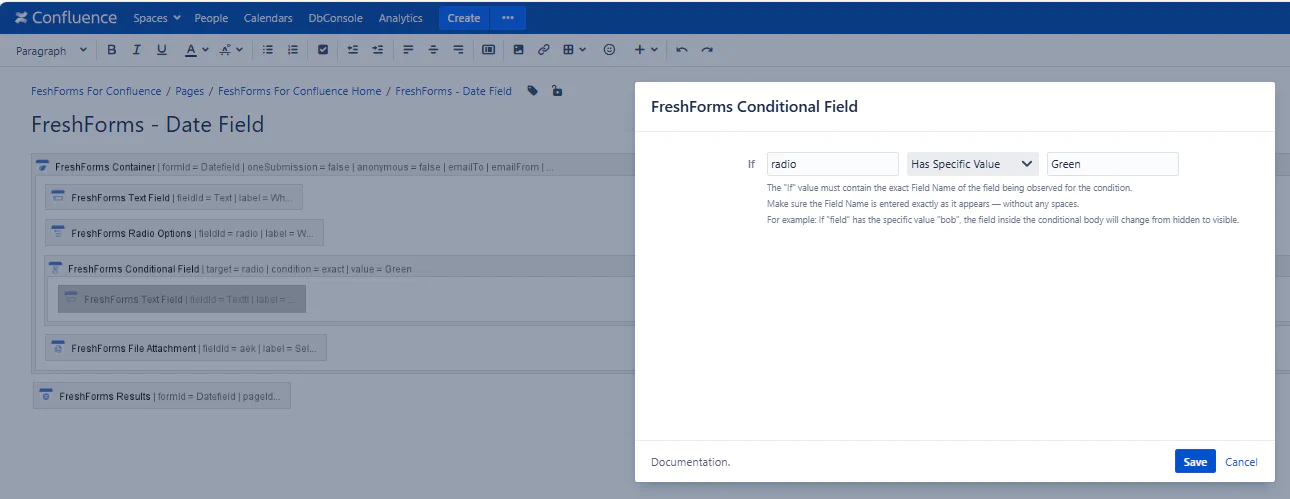
This condition checks whether the field contains a specific value that you define. If the field value exactly matches the condition, the content inside the Conditional Macro will be shown.
Example:
employmentStatusIf the user selects “full-time” for the employmentStatus field, the fields inside the conditional body (e.g., “Upload Resume”) will appear. If the value is anything other than “full-time,” the field will remain hidden.
Example Usage:
This condition checks whether the field has any value entered at all. If the field contains any value (even a single character), the content inside the Conditional Macro will become visible.
Example:
commentsIf the user types anything in the comments field, the content inside the macro (e.g., “Thank you for your feedback!”) will appear. If the field is left blank, the content will remain hidden.
Example Usage:
The content inside the conditional macro will either be visible or hidden depending on whether the condition is met. You can combine these conditions to create more dynamic and interactive forms.