Title here
Summary here
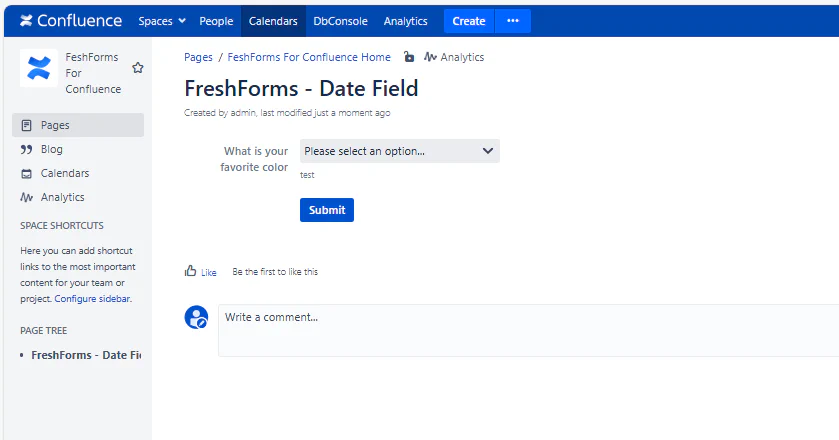
The Dropdown Field allows users to choose from a predefined list of options — ideal for limiting inputs to a specific set of values. Use this when you want consistency in responses, such as selecting departments, leave types, or session topics.
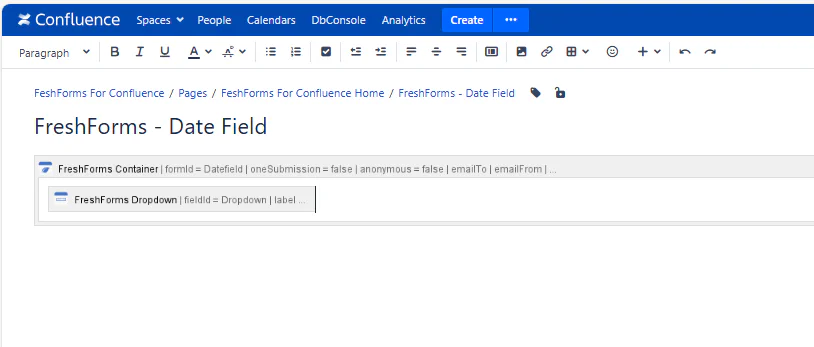
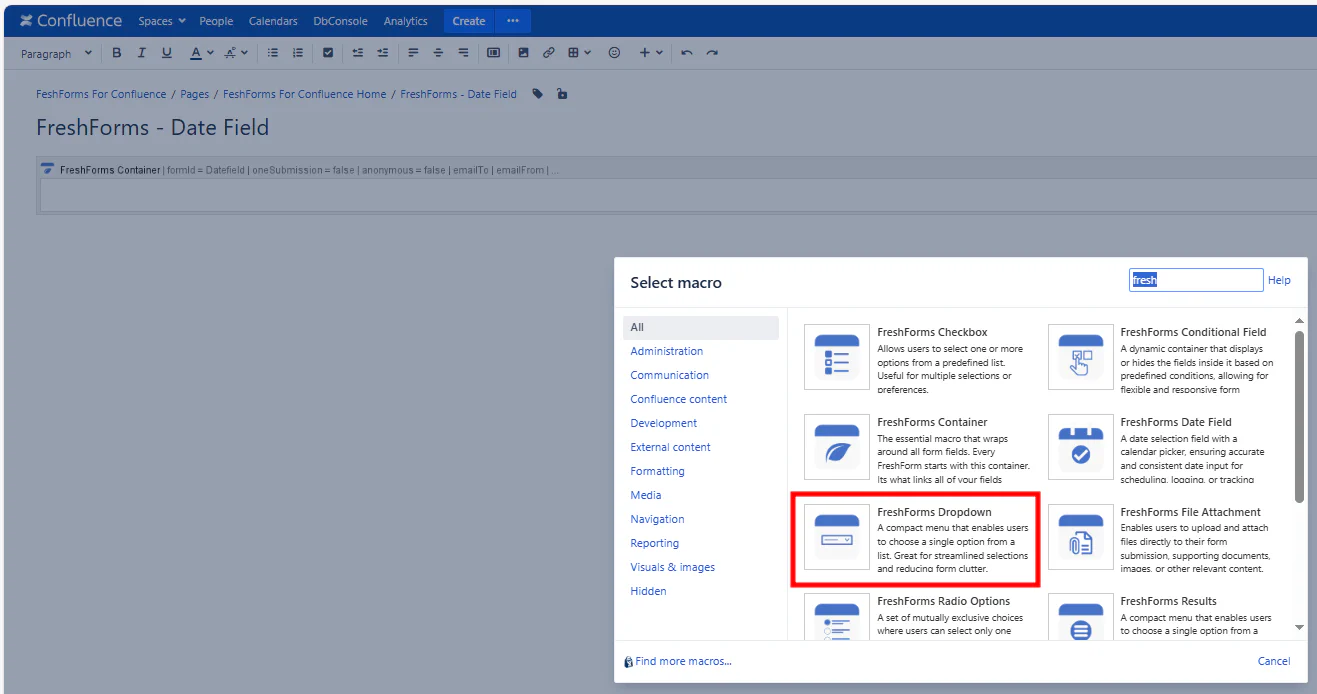
This will insert a FreshForms Dropdown within the Container Macro.
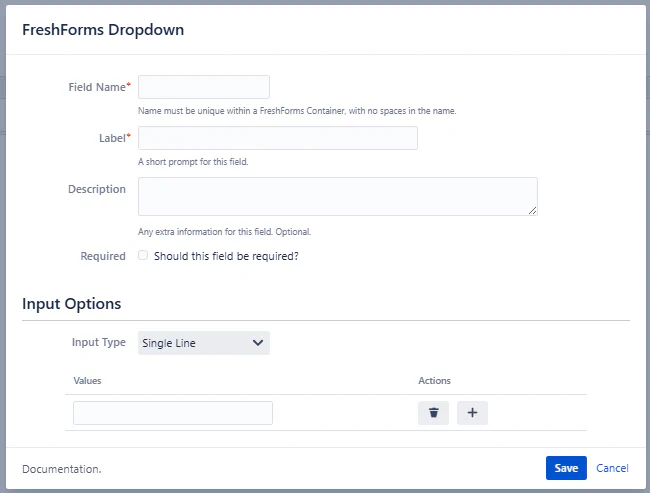
Required. A unique, alphanumeric identifier for this field — no spaces or special characters. Used for filtering, reporting, and referencing within macros or conditions.
Example: leaveType, department, sessionChoice
The visible question or prompt for the dropdown. Use clear, action-oriented language that guides the user’s selection.
Example: Select a Department, Choose a Training Track
Optional supporting text shown beneath the field. Use this to clarify what the list represents or how to make a selection.
Example: “Choose one option from the list. If unsure, contact HR.”
Check this to make the field mandatory. Users will be prompted to choose an option before submitting the form.
There are two ways to add options:
Single Line Add — Add one item at a time — helpful for short lists or when order matters.
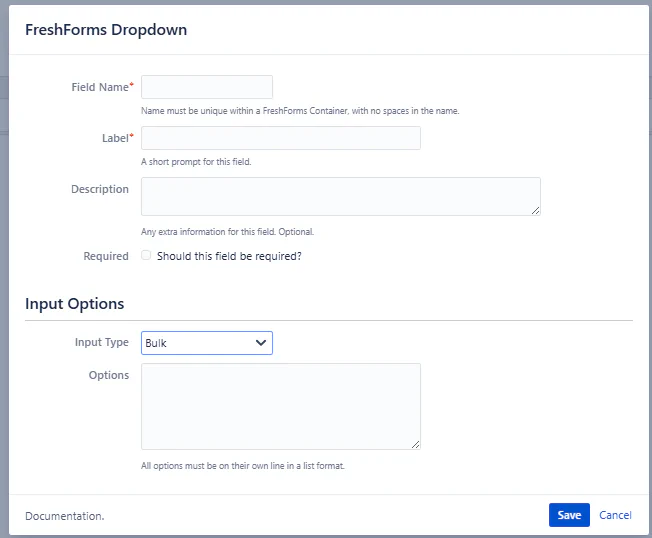
Bulk Add — Paste multiple options at once. Each new line will be converted into an individual dropdown option. Use this when building longer lists quickly or copying from an external source.