Title here
Summary here
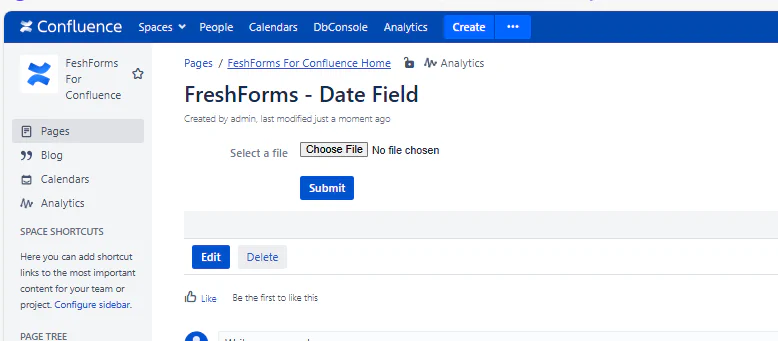
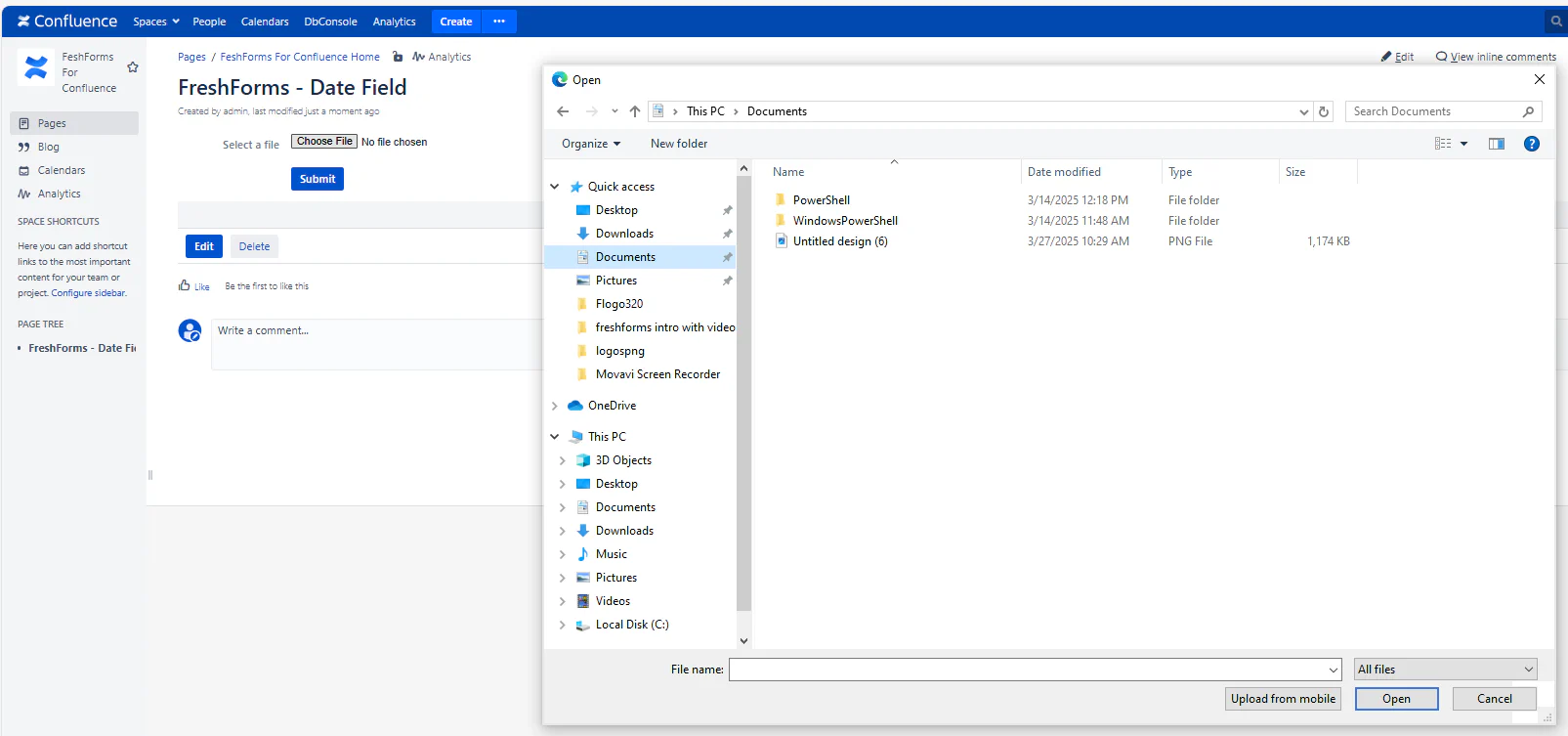
Let users upload files directly through the form — whether it’s resumes, ID cards, screenshots, signed PDFs, or other documentation. These files are stored with the form submission and can be downloaded from the results table.
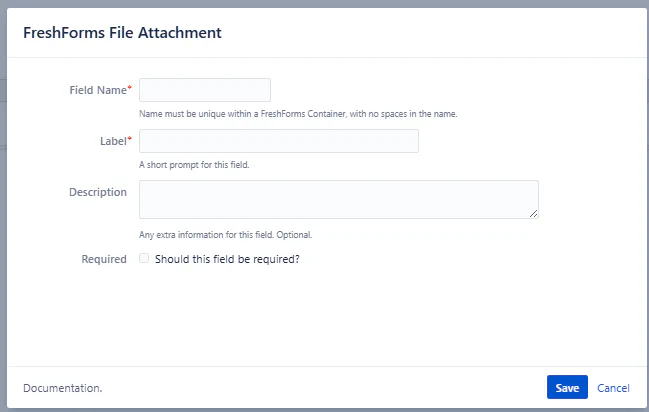
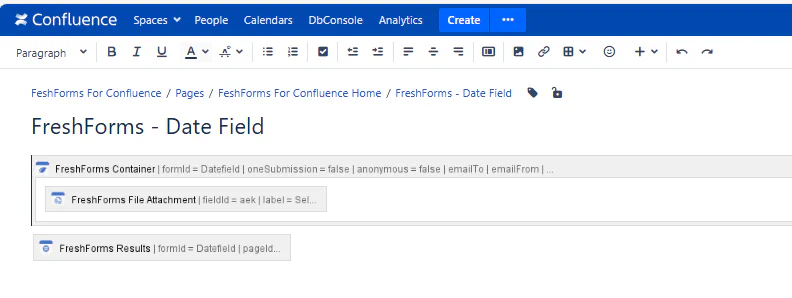
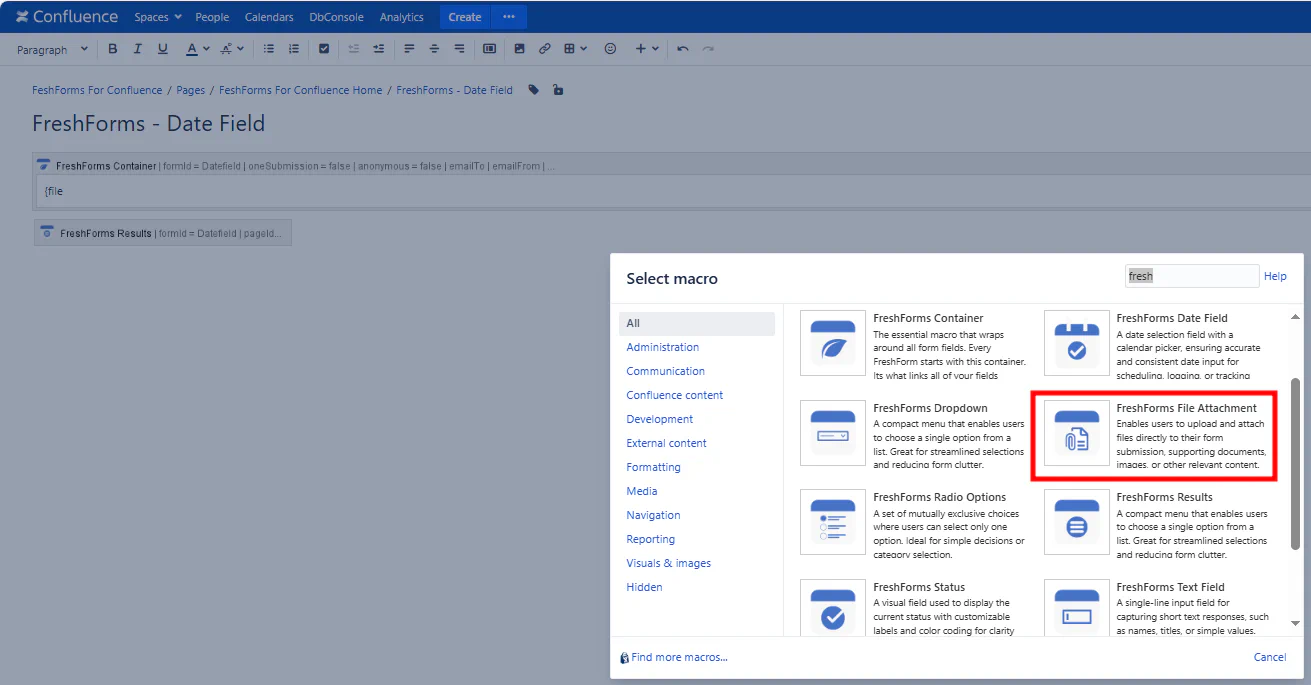
This will insert a FreshForms File Attachments within the Container Macro.
Required. A unique identifier used to reference this field in filters or automation. Avoid spaces and special characters — use camelCase or underscores.
Example: resumeUpload, supportingDocs, screenshot
The visible field title that tells users what file to upload.
Example: Upload Resume, Attach Screenshot, Submit Completed Form
Optional helper text displayed under the field. Use this to explain acceptable file types, max size, or why the file is needed.
Example: “PDF or Word format only, max 10MB.”
Check this box to make file upload mandatory. The form cannot be submitted unless a file is attached.