Title here
Summary here
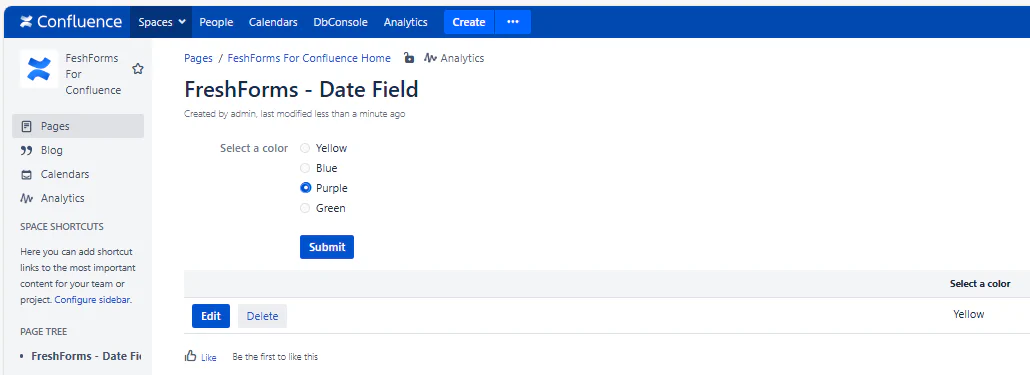
Use Radio Options when you want users to choose exactly one item from a short, predefined list. This field displays all options visibly as buttons, making it easier to see all choices at once — great for quick decision-making.
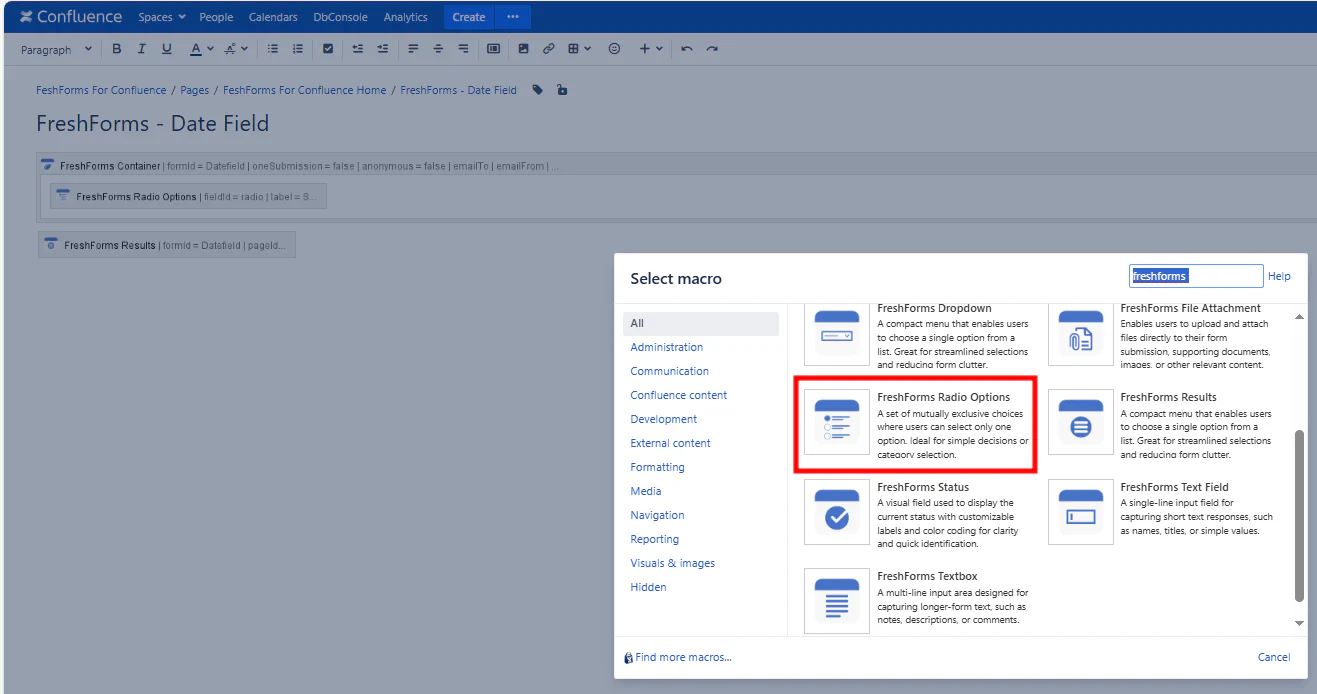
This will insert a FreshForms Radio Options within the Container Macro.
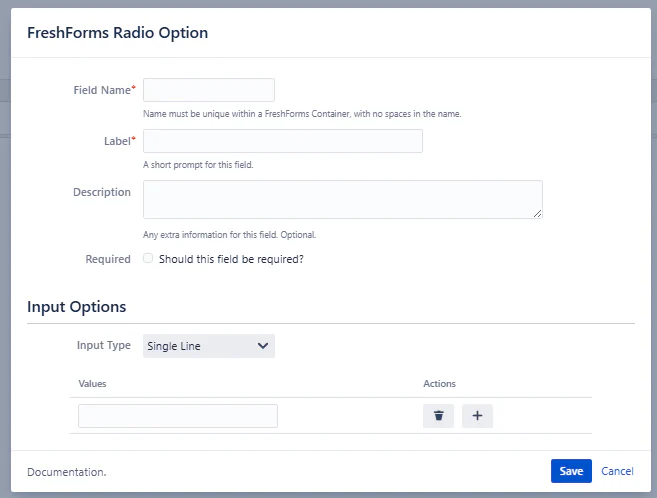
A required internal name used to reference and filter this field. Use camelCase or underscores — no spaces or special characters.
Example: attendance, mealPreference, feedbackType
This text appears directly above the radio buttons. It tells the user what they’re choosing.
Example: Select Your Department, Did You Attend?, Choose an Option
Optional helper text under the field. Use this to explain the purpose of the options or give instructions.
Example: “You can only select one response.”
Make this field mandatory so the form can’t be submitted without an answer.
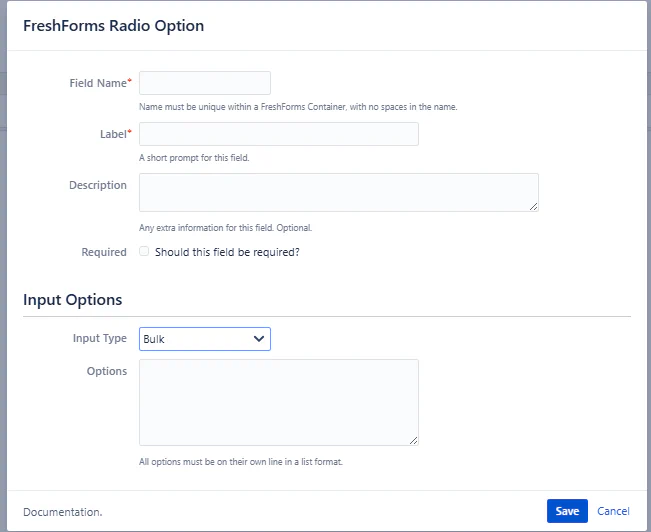
You can add radio options in two ways: