Title here
Summary here
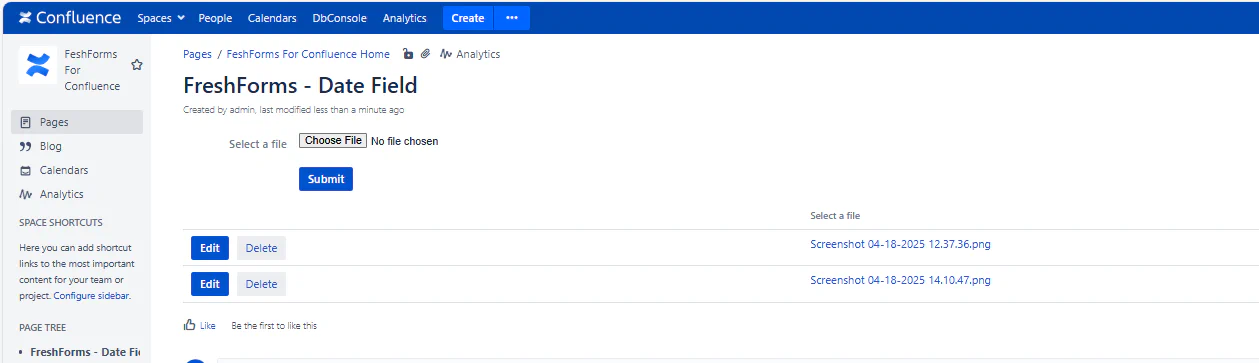
Display and manage form submissions in an easy-to-read table format. The Results Table enables you to review, edit, delete, and interact with form data, providing flexibility for managing submissions. You can also filter data and download attached files.
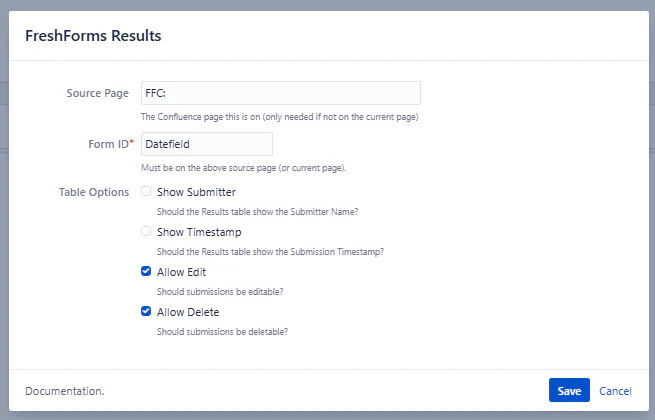
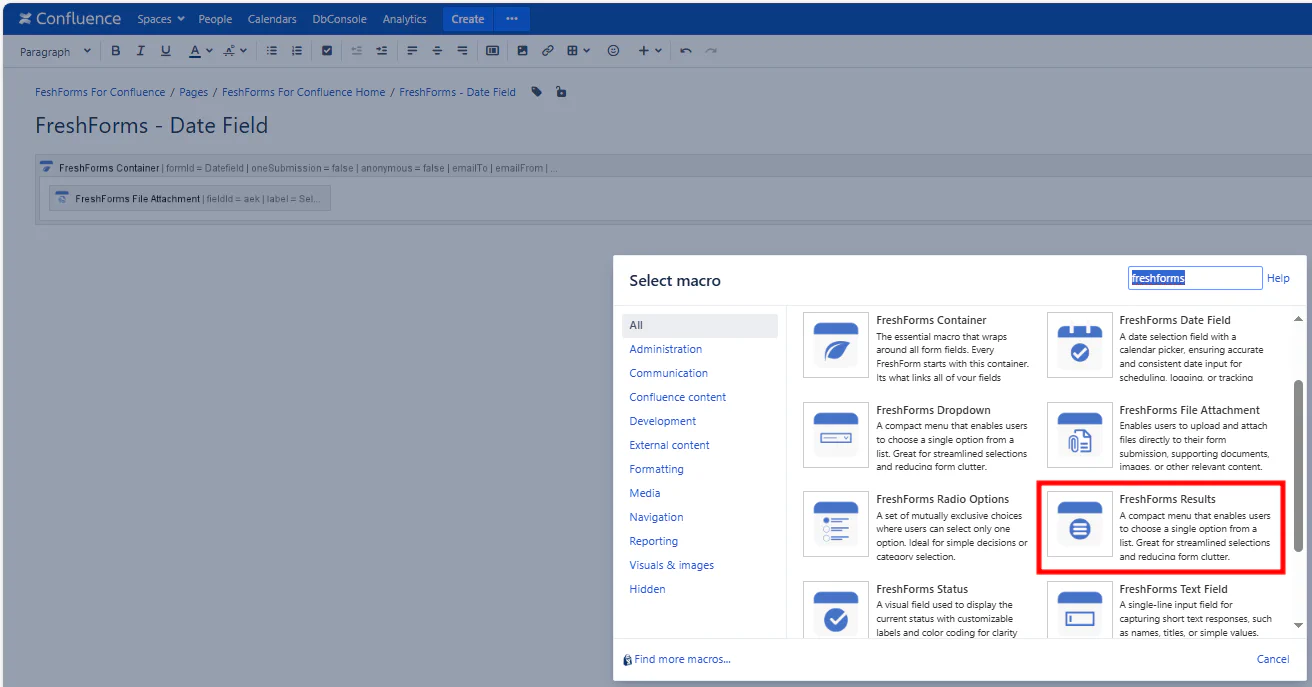
This will insert a FreshForms Results table on the page.
Specifies the page where the form data is stored. This is only necessary if you’re placing the results macro on a separate page from the form.
Example: formPage, dataEntriesPage
The unique identifier of the form from which you want to pull results. Make sure the Form ID matches exactly.
Example: jobApplicationForm, surveyForm, feedbackForm
Check this option to display the submitter’s name or ID in the results table. This lets reviewers see who submitted the form.
Check this option to display the date and time when the form submission was made.
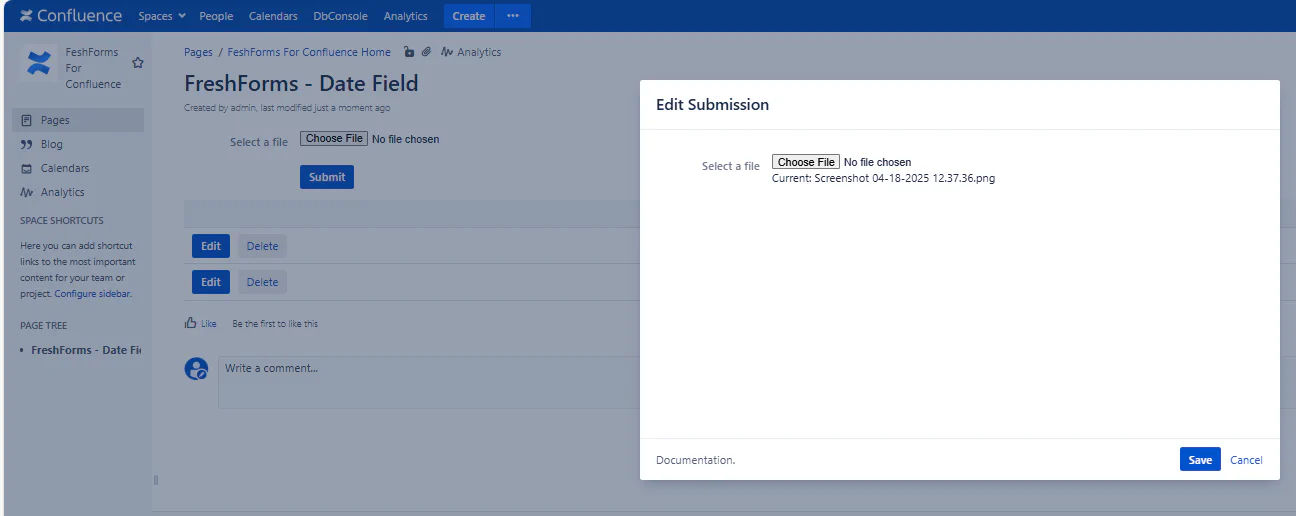
Check this option to add an edit button to each submission in the results table. This allows users or admins to modify any form submissions as needed.
Check this option to add a delete button for each submission, allowing users or admins to remove unwanted or incorrect submissions directly from the results table.