Title here
Summary here
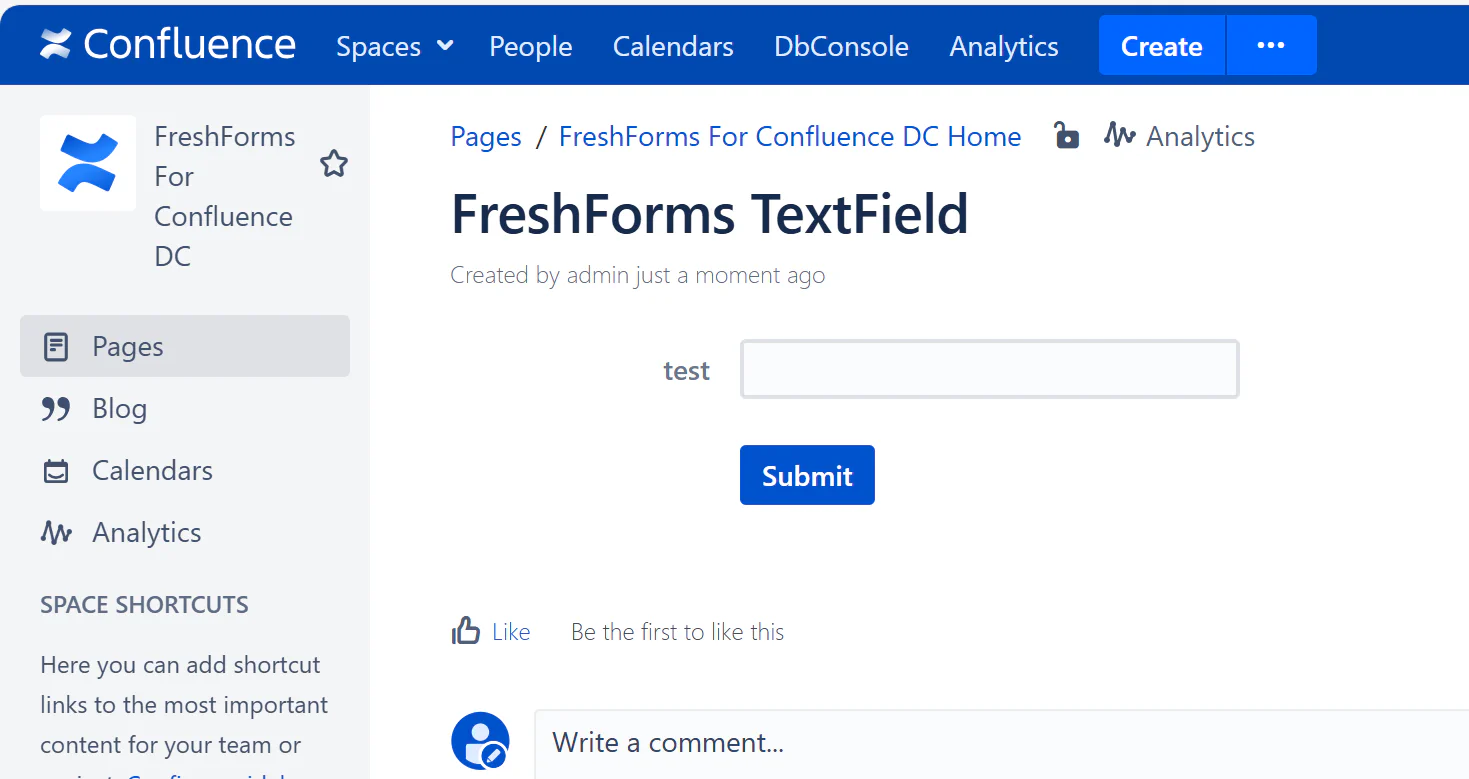
Use a TextField when you need users to enter short, free-form text — like names, emails, or short responses. It’s one of the most commonly used input fields for collecting basic information.
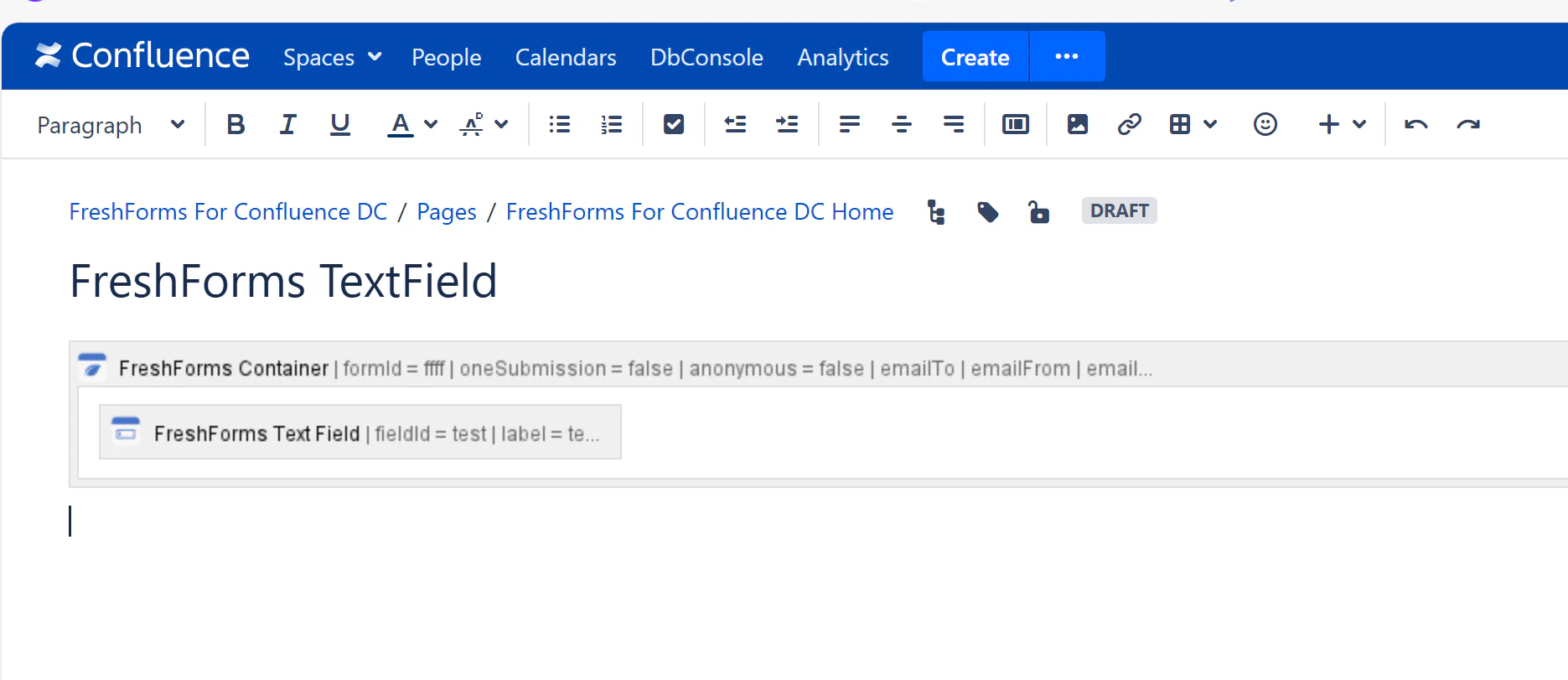
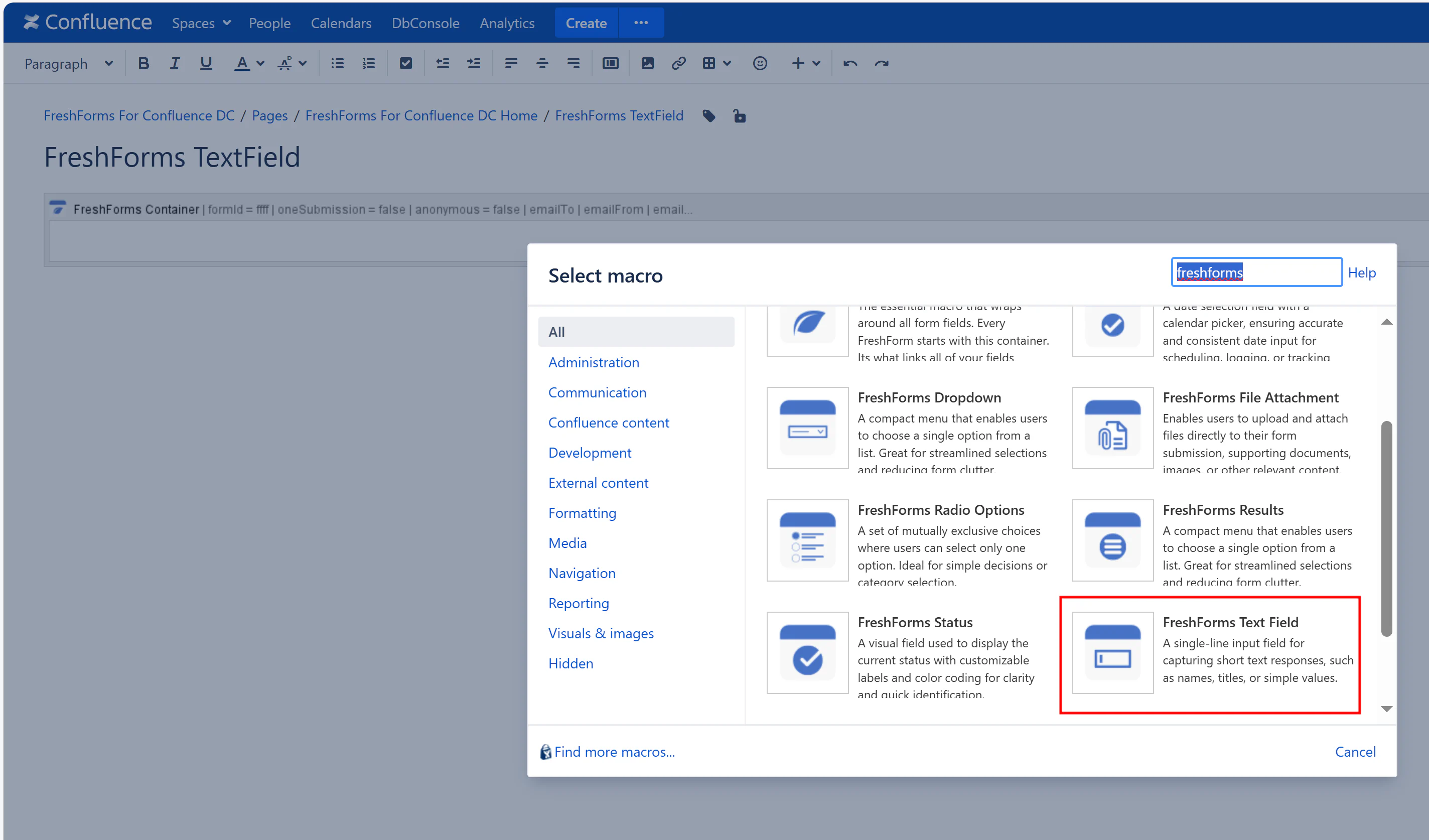
This will insert a FreshForms TextField within the Container Macro.
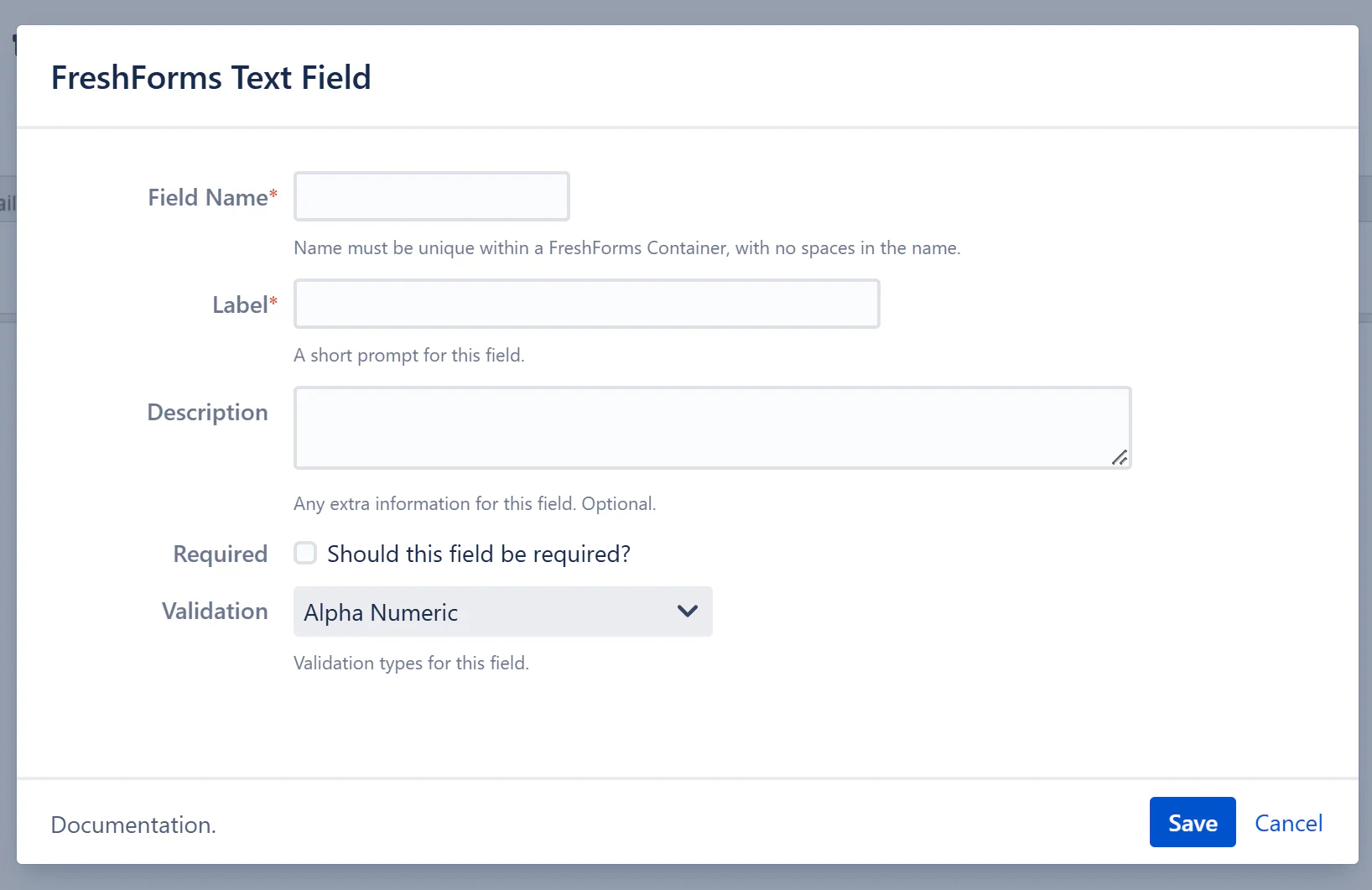
Required. A unique, alphanumeric identifier for this field — no spaces or special characters. It should follow the same naming rules as the form container.
Example: firstName, employeeID, emailAddress
The short prompt or question shown above the text field. Use it to clearly describe what information you’re asking for.
Example: Your Full Name, Email Address, Reason for Request
Optional helper text that appears beneath the field. Use this to provide additional guidance, context, or formatting instructions.
Example: “We will not share your email with anyone.”
Check this box to make the field mandatory. The form will not be submitted unless the user fills this in.
Choose a validation rule to control the kind of input allowed:
Use validation to ensure data is clean and accurate.