Travel Request Form

Streamline employee travel requests by dynamically showing only the fields relevant to the type of trip they’re planning. This reduces form clutter, improves accuracy, and speeds up approvals.


🧾 Step 1: Set Up the Form

Include these fields:

  • Employee Name (Text Field)
  • Trip Type (Dropdown: Domestic, International)
  • Travel Dates (Date Field)
  • Destination (Text Field)
  • Passport Number (Text Field - shown only if International is selected)
  • Visa Required? (Checkbox - shown only if International is selected)
  • Hotel Required? (Checkbox)
  • Special Requests (Text Box)

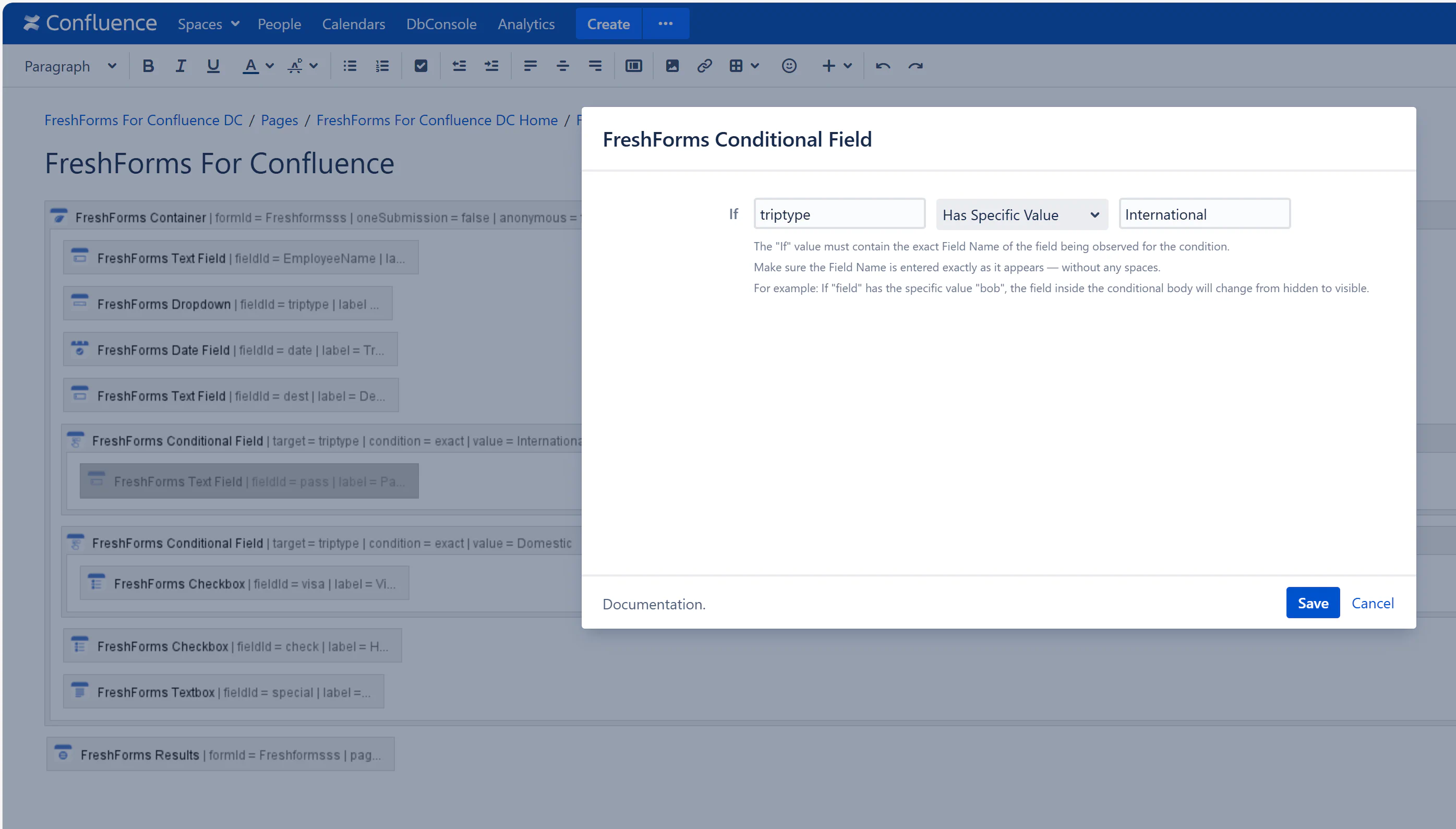
➡️ Use the Conditional Field macro to define the following rules:

  • Show Passport Number and Visa Required? only when Trip Type = International
  • Hide those fields when Trip Type = Domestic

Screenshot 05-03-2025 10.46.34.png


✍️ Step 2: Submit a Travel Request

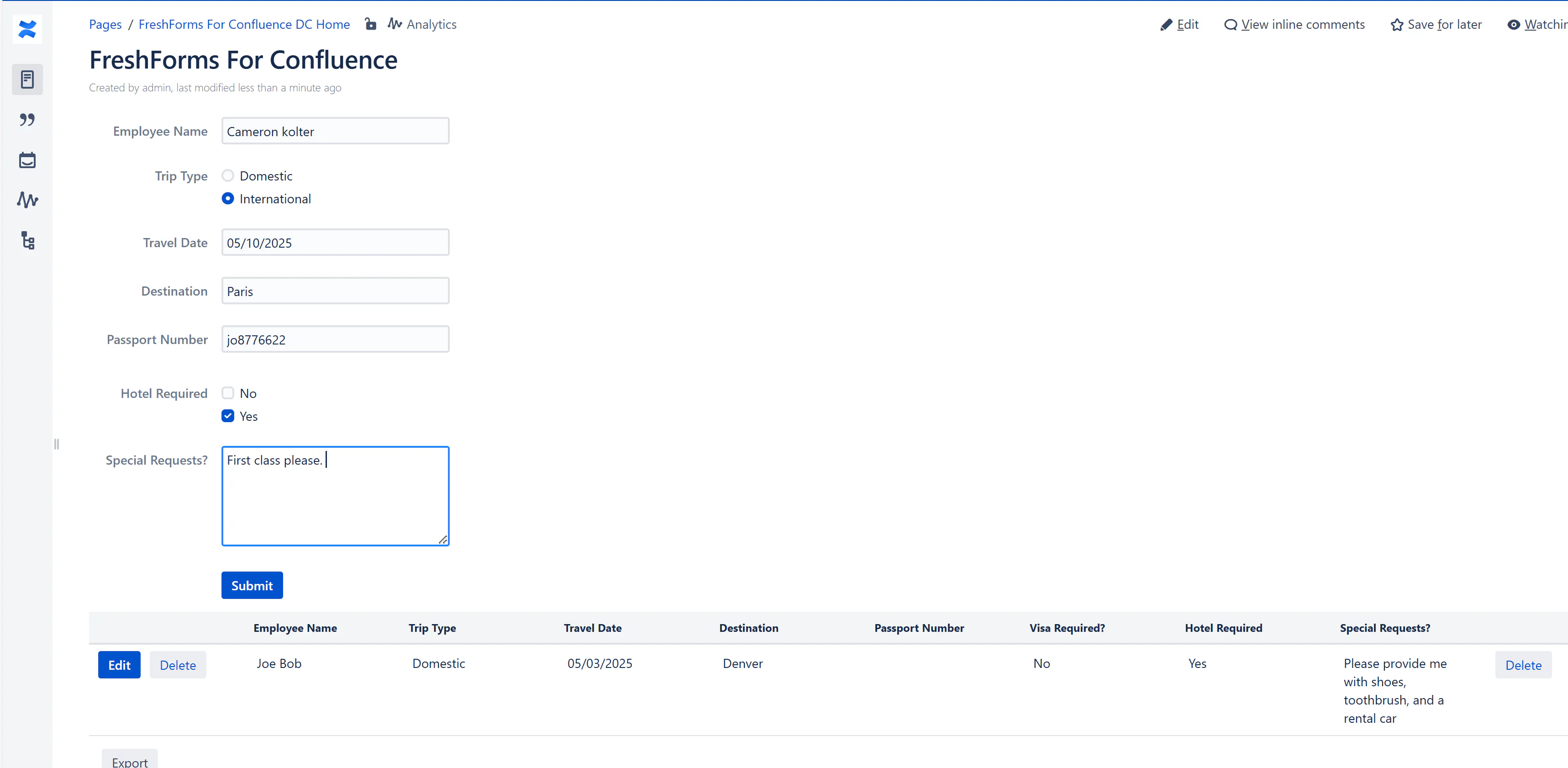
When employees open the form, they first select Trip Type.

  • If Domestic → only basic fields appear
  • If International → passport and visa fields appear automatically

This ensures travelers don’t miss critical details, and avoids clutter for domestic trips.

Screenshot 05-03-2025 10.51.27.png

🛠️ Step 3: Review and Process Requests

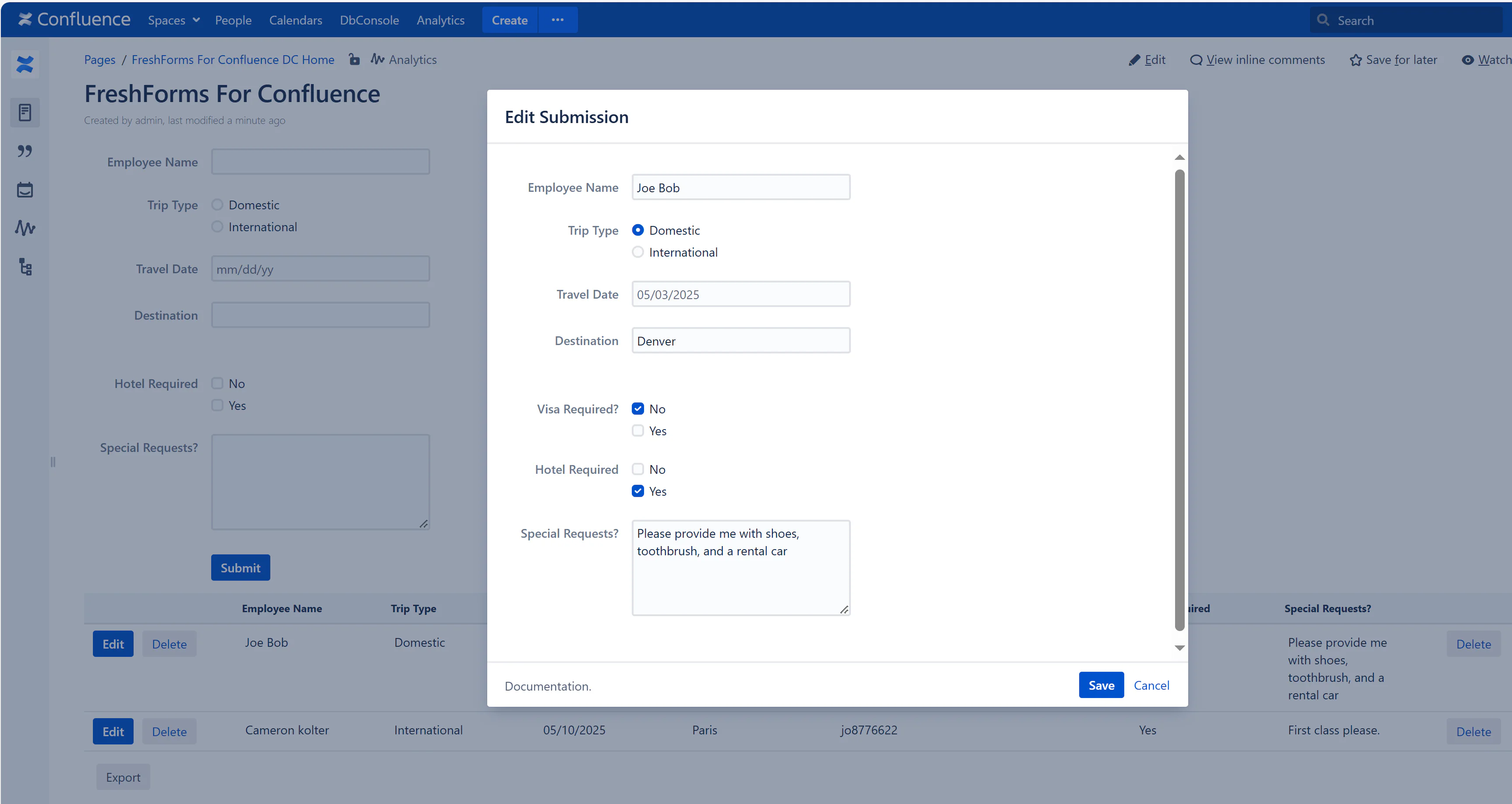
All travel requests appear in the results table, with conditional fields included only if applicable. Travel managers can sort by Trip Type, Visa Required, or Hotel Required to batch-process approvals.

Example workflows

  • Assign international trips to the travel team for visa support
  • Quickly approve domestic trips without extra review
Screenshot 05-03-2025 10.52.15.png

✅ Why This is Useful

  • Reduces errors and missed info on international travel
  • Keeps the form simple for domestic travelers
  • Speeds up review and approval by separating requests by type
  • Ensures compliance with company travel policies